

Installation
Step 1: Install the Resource
Step 1: Install the Resource
Place the Traffic Engine resource into your server’s resources folder.Example:

Step 2: Ensure the Resource
Step 2: Ensure the Resource
Ensure and start Traffic Engine to your server’s
server.cfg file.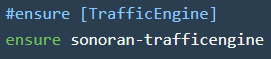
Step 3: Configure Permissions
Step 3: Configure Permissions
Traffic Engine uses ACE permissions for administrative access.Add the following permission to your server configuration:Example:
Traffic Engine Menu
Opening Traffic Engine
Opening Traffic Engine
Administrators can access Traffic Engine in-game using:This command opens the Traffic Engine administrative toolset.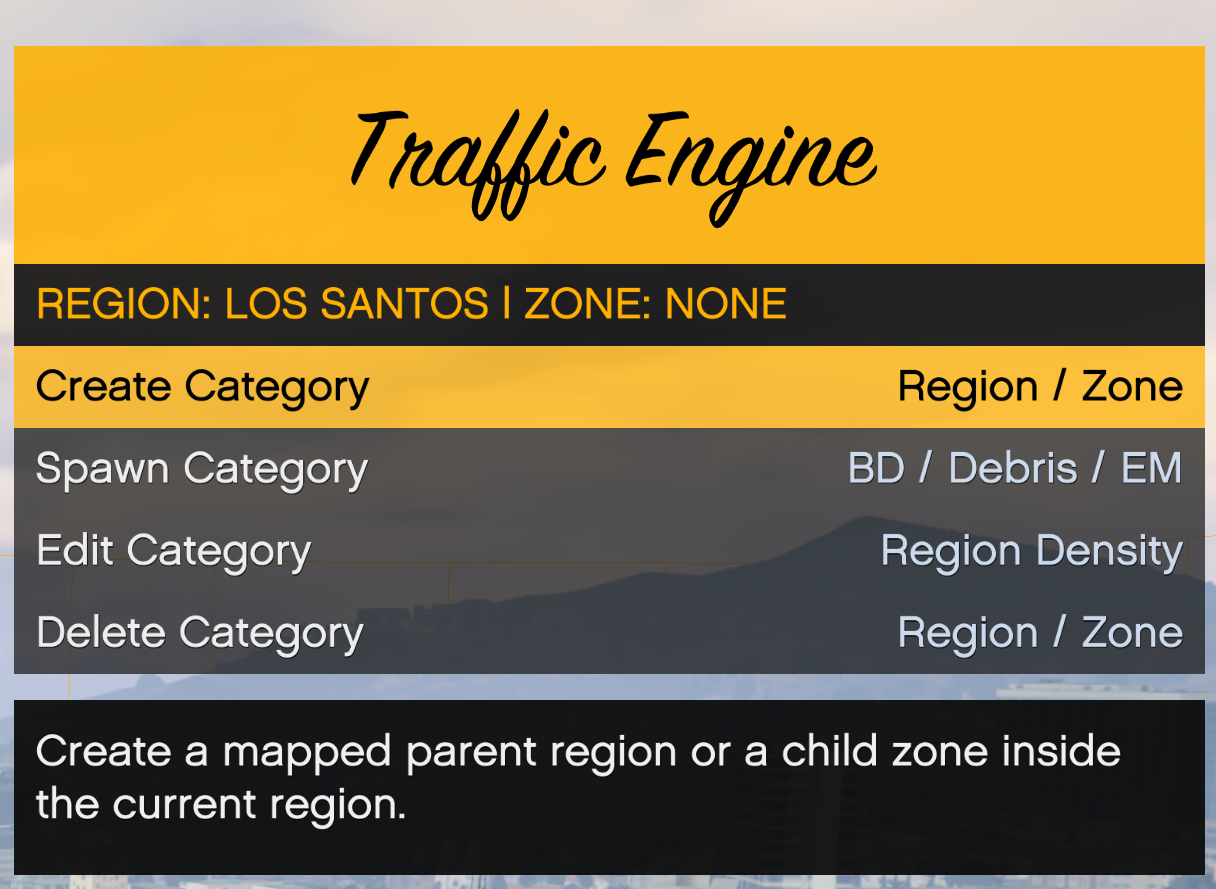 This menu allows for the creation of regions, zones, breakdowns, and debris management.
This menu allows for the creation of regions, zones, breakdowns, and debris management.Region and Zone Management
What are Regions?
What are Regions?
RegionsA region represents a large section of the map and acts as the parent for all traffic behavior within that area.Example Regions:
- City Region:
Los Santos - County Region:
Blaine County - Rural Region:
Paleto Bay
What are Zones?
What are Zones?
Zones are smaller areas inside a region.Examples:
- Downtown Los Santos
- Interstate 1
- Airport Access Road
- Mirror Park
Region Creation
Region Creation
To create a region: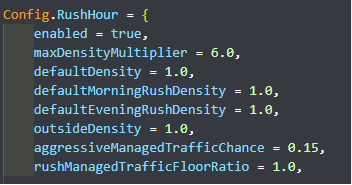 Evening Rush Multiplier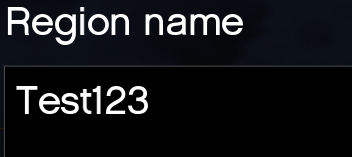


- Open the menu with
/trafficengine - Select Create Category > Region
- Configure the region’s name and rush hour settings:
- How dense will the traffic in this region become during the morning rush hour time?
- These values can be edited as a baseline in the config.lua as a blanket while the regions in game can have their own values.
Evening Rush Multiplier- How dense will the traffic in this region become during the morning rush hour time?
- These values can be edited as a baseline in the config.lua as a blanket while the regions in game can have their own values. As seen as above.
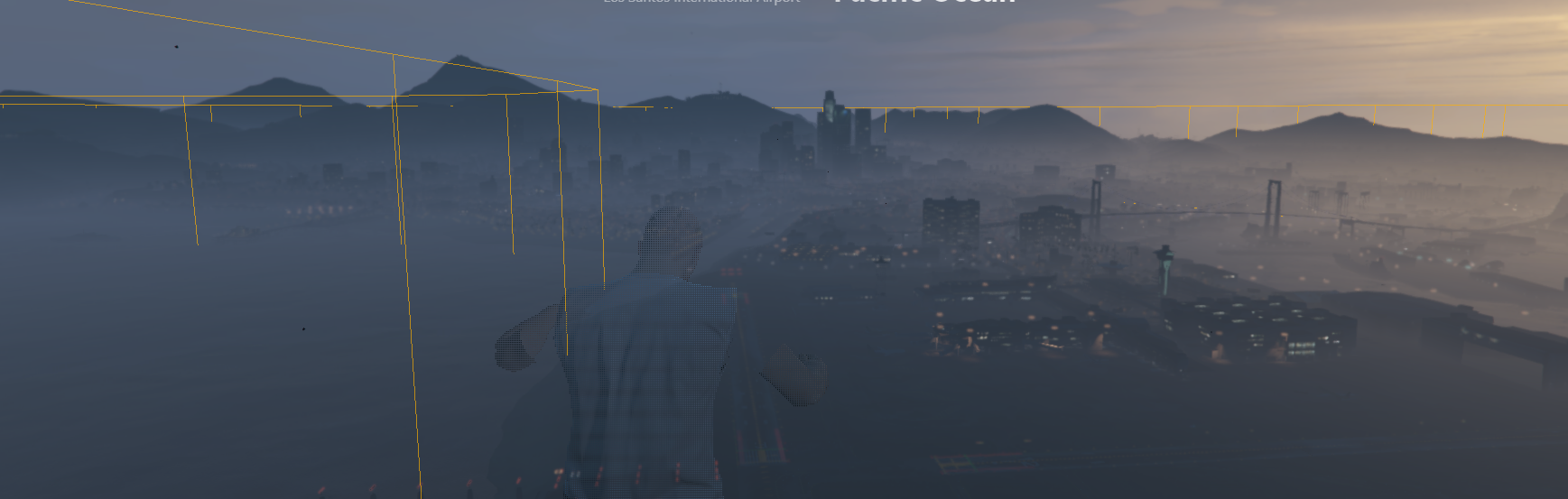
- Place Nodes
- Add nodes by placing them down by pressing E to draw out your zone. Press Enter to confirm
- Regions are substantially taller and deeper than a zone.
Zone Creation
Zone Creation
To create zones inside of the region:Debris Allowance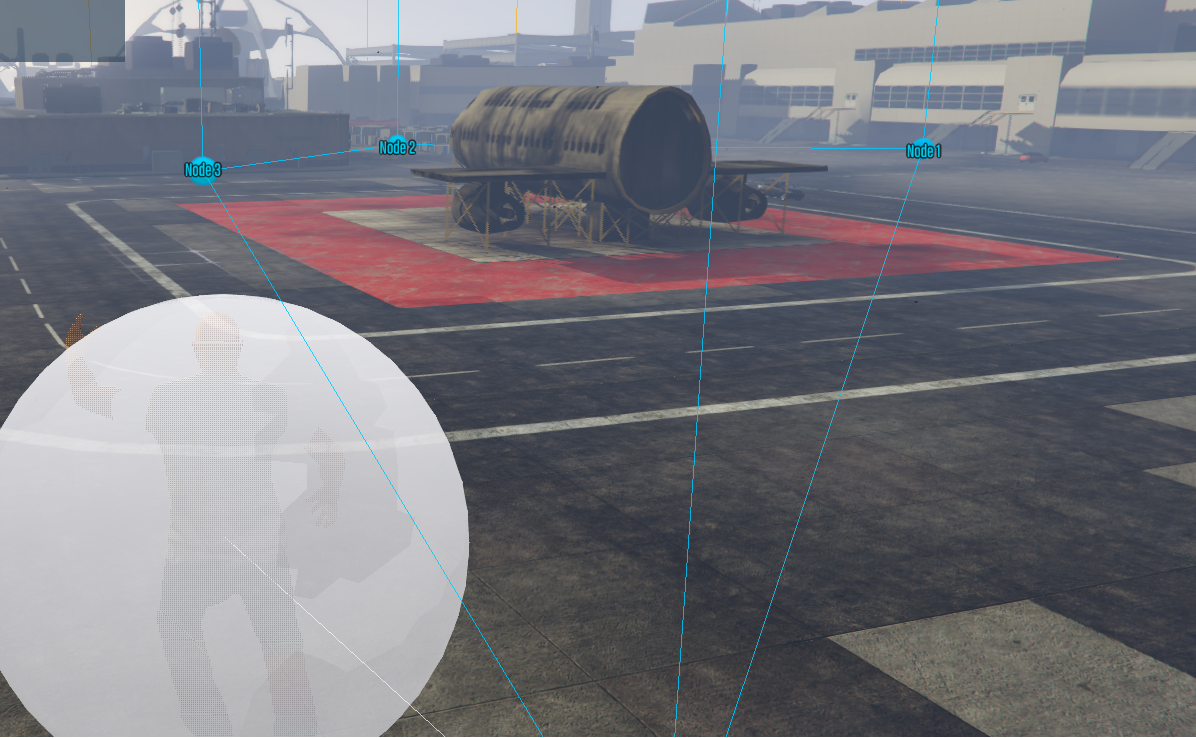
- Open the menu with
/trafficengine - Select Create Category > Zone
- Configure the zone’s settings:
- Place Spawn Zones
- Configure spawn points for the breakdowns and debris by pressing E, to save press Enter.
- When blue nodes appear those are temporary locations, you can remove or save their location by going to a new area then press E
Region and Zone Deletion
Region and Zone Deletion
Delete zones or regions from the in-game menu.Note that any changes will be saved automatically, save a backup file if you wish to revert your changes.
Debris
Configuring Debris Spawning
Configuring Debris Spawning
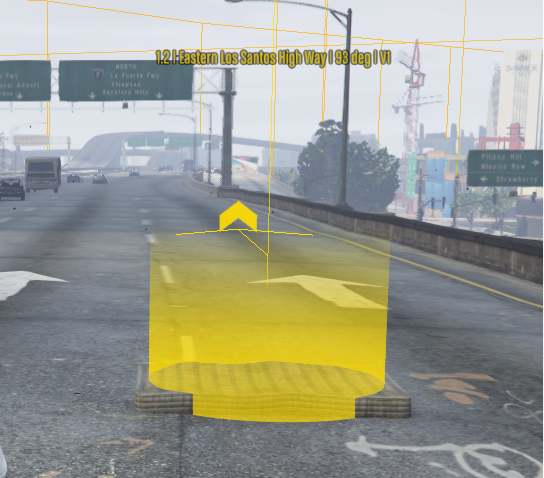
Debris will automatically spawn inside the zone depending on the maximum amount of debris allowance set when first creating the zone.Debris spawn frequency will be based on the 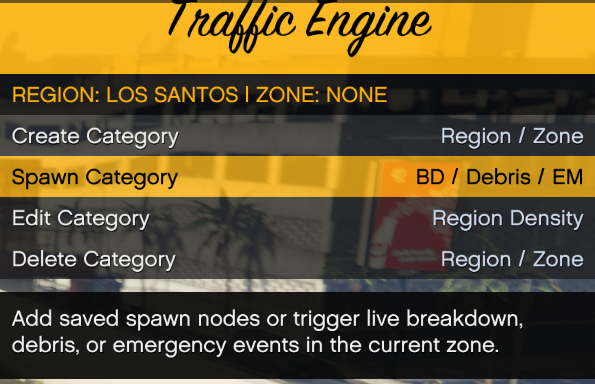
 The
The 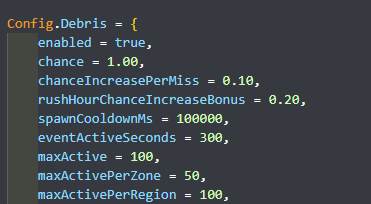
config.Debris chance value.Users can also manually spawn debris at a specific location in a zone via the in-game menu. To manually spawn a debris, navigate to Spawn Category > Debris.The Config.Debris values can be tweaked for further customization.tickIntervalMs - How often the breakdown system checks whether it should try to spawn one.spawnCooldownMs - Cooldown after a successful breakdown before another normal spawn can happen.guaranteedSpawnIntervalMs - Maximum time allowed without a breakdown before the system forces a guaranteed attempt.eventActiveSeconds - How long a breakdown stays active before expiring.nodeGracePeriodSeconds - How long a used breakdown node stays locked before it can be reused.minPlayerDistance - Minimum distance a player must be from the node for a breakdown to spawn.cleanupTimeMs - Cleanup timer used to remove the breakdown scene after it expires.cleanupWhenPlayersFar - If enabled, cleans up breakdowns early when players move far enough away.useRoadBlockingFallback - If enabled, blocks road pathing around the breakdown when needed.allowPedSpawnWithBreakdown - If enabled, allows a stranded ped to spawn with the breakdown vehicle.Cleanup Debris
Cleanup Debris
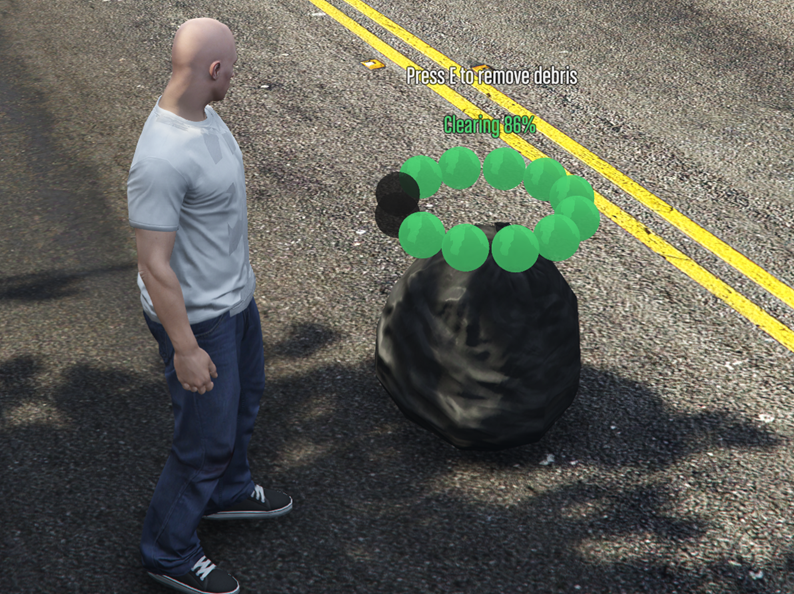 Roadway debris can be cleaned up and removed by interacting and holding E on the debris.This allows law enforcement, sanitation, DOT, civilians, or anyone else to clear debris from the roadways.
Breakdowns
Vehicle Breakdowns
Vehicle Breakdowns
Breakdowns will automatically spawn inside the zone depending on the maximum amount of breakdown allowance set when first creating the zone.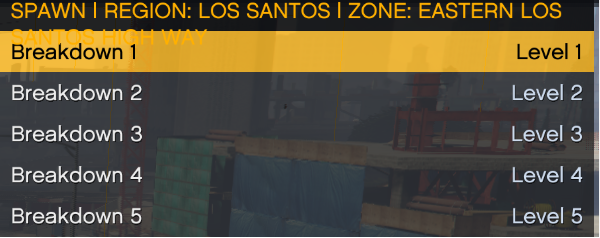 When a breakdown spawns, it can be one of several severity scenarios. Higher level breakdowns can also spawn emergency services that will respond to it.Breakdowns slow the speed of traffic substantially, causing traffic jams if players are in the area.Config.Breakdowns:Turns the breakdown system on or off.Base chance for a breakdown event to occur when the system rolls.Adds 8% to the breakdown chance after each failed roll.Adds an extra 20% chance during configured rush-hour periods.Maximum number of active breakdowns allowed server-wide.Maximum number of active breakdowns allowed in a single zone.Maximum number of active breakdowns allowed in a single region.Distance around the breakdown where AI traffic will react and avoid the scene.
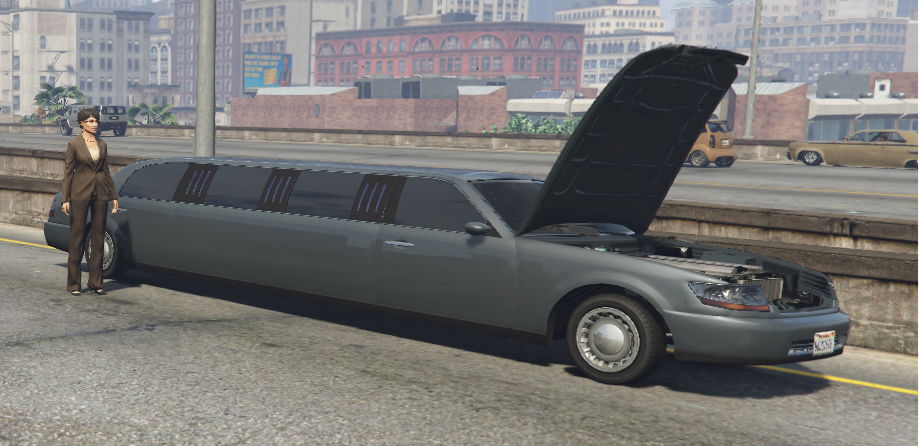
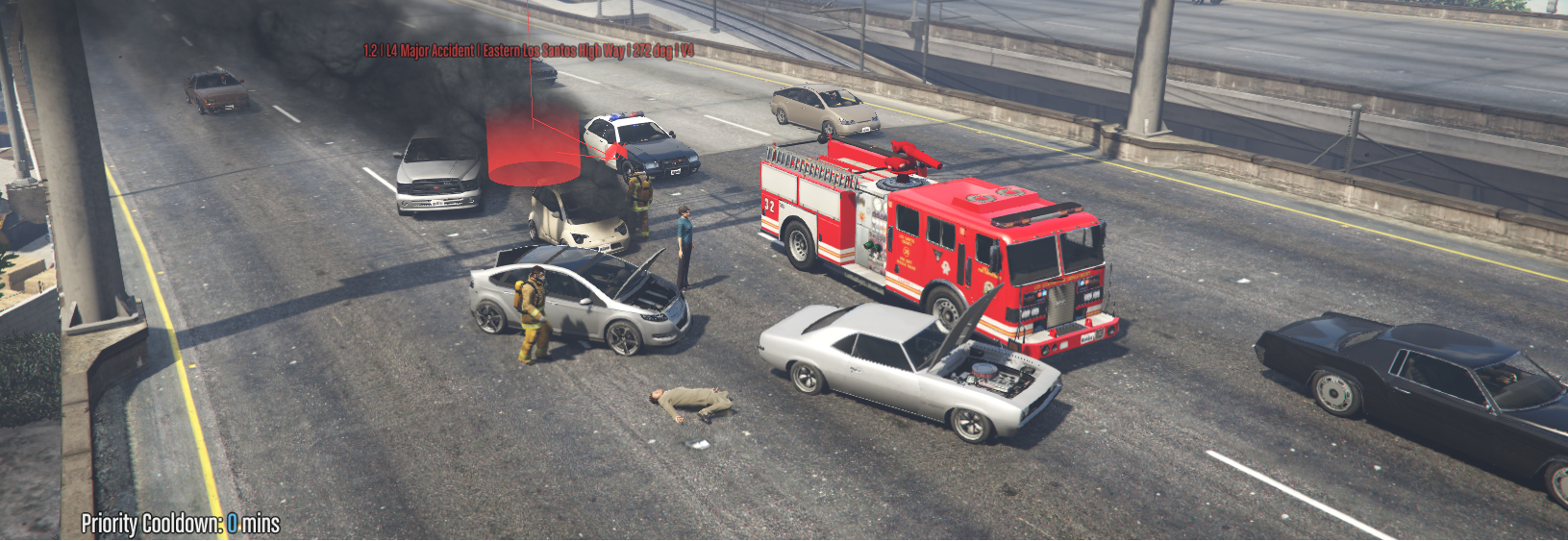
config.Breakdowns chance value.Users can also manually spawn breakdowns at a specific location in a zone via the in-game menu. To manually spawn a breakdown, navigate to Spawn Category > Breakdown.When a breakdown spawns, it can be one of several severity scenarios. Higher level breakdowns can also spawn emergency services that will respond to it.Breakdowns slow the speed of traffic substantially, causing traffic jams if players are in the area.Config.Breakdowns:Emergency Response
Breakdown Emergency Response
Breakdown Emergency Response
When a high level vehicle breakdown spawns, fire and EMS vehicles can also spawn nearby for added realism.Users can also manually spawn emergency vehicles at a specific location in a zone via the in-game menu. To manually spawn an emergency vehicle, navigate to Spawn Category > Emergency. Emergency Nodes will show up in blue when manually placed.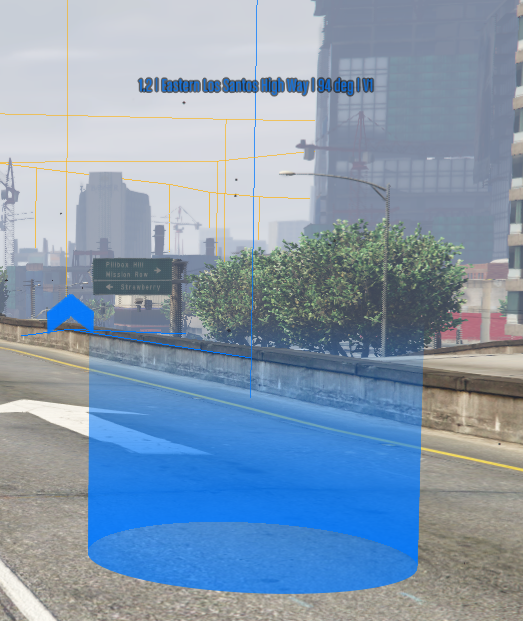
Calm AI
Calm AI Traffic Management
Calm AI Traffic Management
Many communities use traffic and AI management systems like “Calm AI”. These scripts manage the overall traffic density across the map and AI aggressiveness behavior.Because Traffic Engine will conflict with any existing Calm AI script, these features are built in.Go to config.lua and find this value to apply Override or not depending on what traffic manager you use.