# Custom Domain / Vanity URL

<figure><img src="https://1542307009-files.gitbook.io/~/files/v0/b/gitbook-x-prod.appspot.com/o/spaces%2FfCk5zoeun5gx3ujYW6eg%2Fuploads%2FcYFU1QRkXHXlRzMU1zuN%2Fradio_domain.png?alt=media&#x26;token=c831817e-06c6-4bcb-8f06-1012ab60201b" alt=""><figcaption></figcaption></figure>

## Vanity URLs

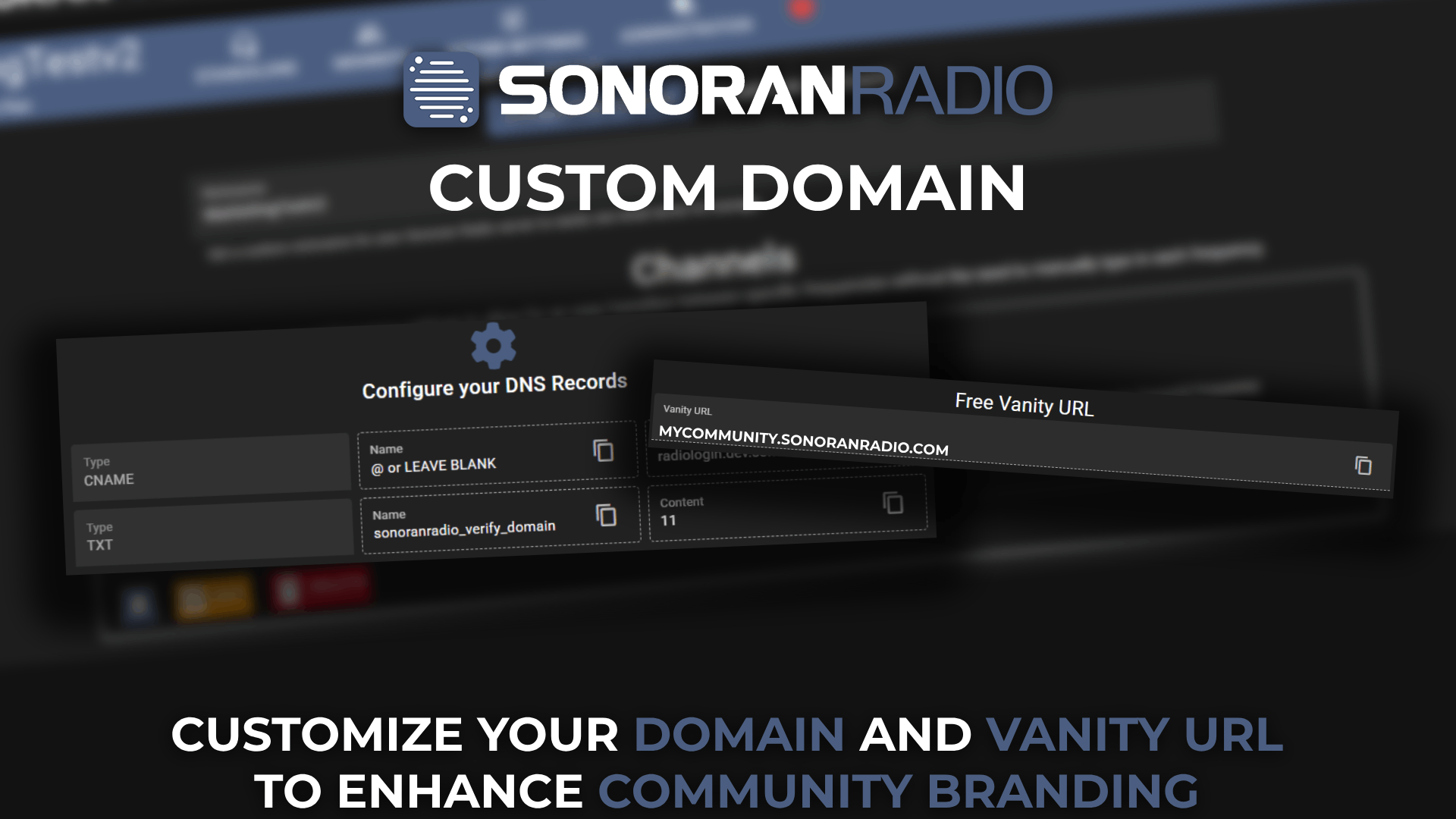
Each community gets their own free vanity URL, visible in the `Custom Domain` section of your community's customization tab

If your community is Plus or Pro, your vanity URL will match your community's custom ID

<figure><img src="https://1542307009-files.gitbook.io/~/files/v0/b/gitbook-x-prod.appspot.com/o/spaces%2FfCk5zoeun5gx3ujYW6eg%2Fuploads%2FQaJKpsMDbF0Y4TRqYTj1%2Fimage.png?alt=media&#x26;token=0b9a2efd-5b9a-40cc-bf97-0a874187b566" alt="" width="375"><figcaption></figcaption></figure>

### Customizing Your Community ID

{% hint style="warning" %}
Custom Community IDs require a **plus** subscription or higher.\
[Learn more about our paid plans!](https://docs.sonoransoftware.com/radio/pricing/pricing-faq/standalone-pricing)
{% endhint %}

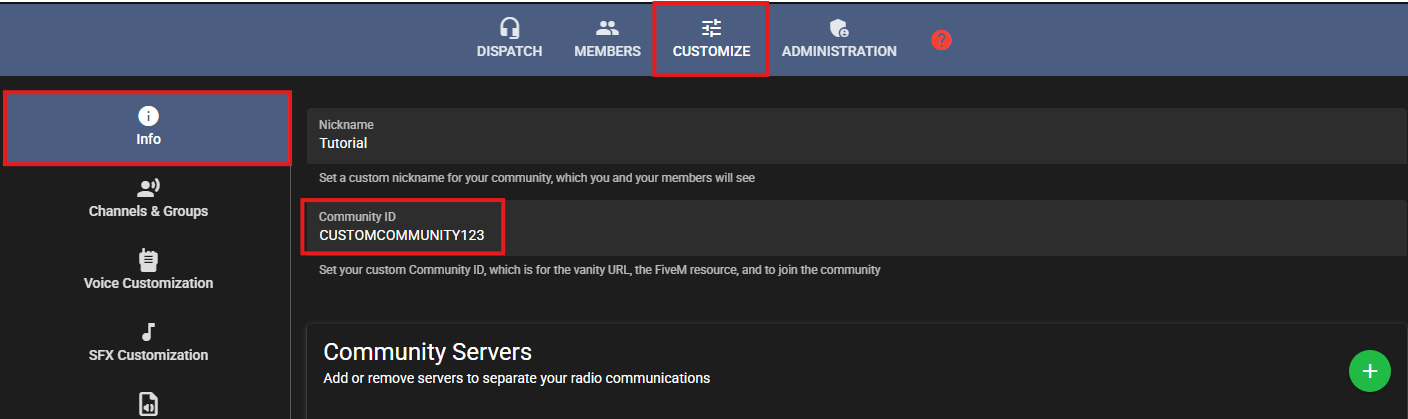
To customize your community ID, navigate to `Customize` > `Info` > `Community ID`.\
Enter in a new, custom community ID.

<figure><img src="https://1542307009-files.gitbook.io/~/files/v0/b/gitbook-x-prod.appspot.com/o/spaces%2FfCk5zoeun5gx3ujYW6eg%2Fuploads%2F0aEK7N32yzzb6Sn40JI4%2Fimage.png?alt=media&#x26;token=2f62614a-24f9-492e-b0ca-cf0d705b0b1a" alt="" width="375"><figcaption></figcaption></figure>

## Custom Domain

{% hint style="warning" %}
Custom Domain requires a **pro** subscription.\
[Learn more about our paid plans!](https://docs.sonoransoftware.com/radio/pricing/pricing-faq/standalone-pricing)
{% endhint %}

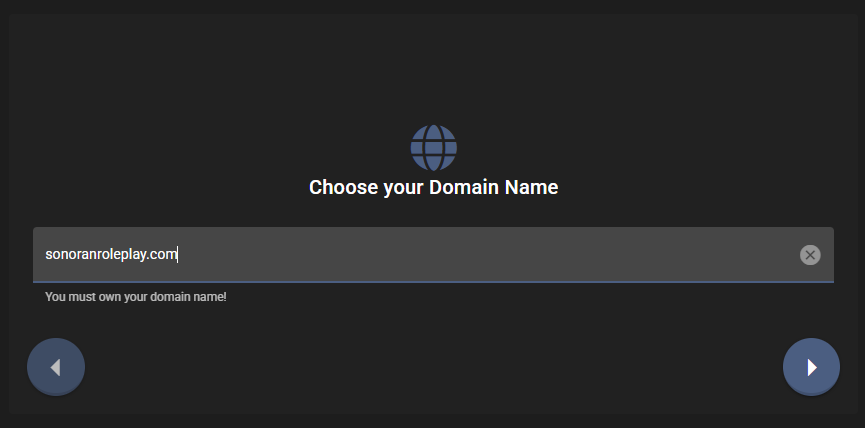
### 1. Enter your Custom Domain

Enter the domain you want Sonoran Radio on, this can be either a root domain (like `sonoranroleplay.com`) or a subdomain (like `radio.sonoranroleplay.com`)

<figure><img src="https://1542307009-files.gitbook.io/~/files/v0/b/gitbook-x-prod.appspot.com/o/spaces%2FfCk5zoeun5gx3ujYW6eg%2Fuploads%2FJotWqvA85xbZk3sDMEpB%2Fimage.png?alt=media&#x26;token=33cefbce-cb28-4531-a02c-3ef36f1bb225" alt="" width="375"><figcaption></figcaption></figure>

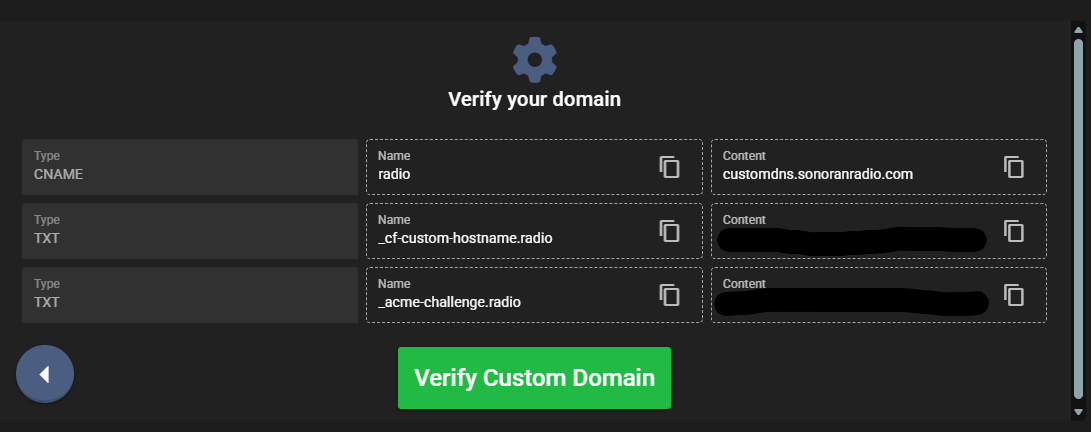
### 2. Configure DNS Records for you Domain

<figure><img src="https://1542307009-files.gitbook.io/~/files/v0/b/gitbook-x-prod.appspot.com/o/spaces%2FfCk5zoeun5gx3ujYW6eg%2Fuploads%2F6OiV4GeOfWRTQqFuL5nt%2Fimage.png?alt=media&#x26;token=9993bb06-6279-4b76-be24-b67b4299c28f" alt="" width="375"><figcaption></figcaption></figure>

Add the shown DNS records shown to you in your domain's administrative panel. If you are using Cloudflare, be sure to **disable** the proxy!

Having trouble? Contact your domain name provider.

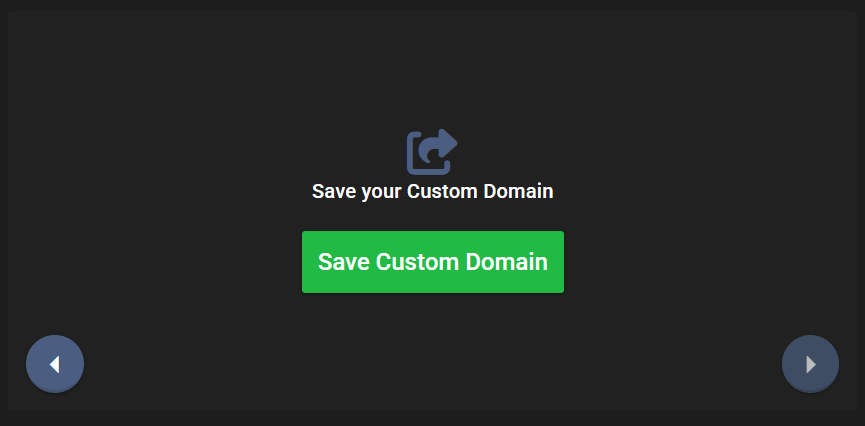
### 3. Save the Custom Domain

Press `Save Custom Domain` in the panel to save your new custom domain. If successful, your new custom domain will be visible above your vanity URL
<figure><img src="https://1542307009-files.gitbook.io/~/files/v0/b/gitbook-x-prod.appspot.com/o/spaces%2FfCk5zoeun5gx3ujYW6eg%2Fuploads%2FaXGxP4uRG4kePIjV2s6F%2Fimage.png?alt=media&#x26;token=463e23f8-c35d-4951-984b-3d3cbc4838ce" alt="" width="375"><figcaption></figcaption></figure>