# TeamSpeak 3

{% hint style="warning" %}
This submodule utilizes API endpoints that require the **plus** version of Sonoran CAD or higher. For more information, view our [pricing ](/cad/pricing/faq.md)page.
{% endhint %}

{% hint style="success" %}
Looking for VPS, web, or dedicated hosting? Check out our official [server hosting](broken://pages/-MRResNcPrj2q6MmmS6j)!
{% endhint %}

## Activation Guide

### 1. Download and Install the Core

If you haven't already, be sure to install and configure the [SonoranCAD Core](/cad/integration-plugins/in-game-integration/fivem-installation.md) first.

### 2. Activate the Submodule and all Dependencies

Follow the [submodule activation guide](/cad/integration-plugins/in-game-integration/submodule-configuration.md#activating-a-submodule) for the required submodules.

### 3. Configure your TeamSpeak Connection

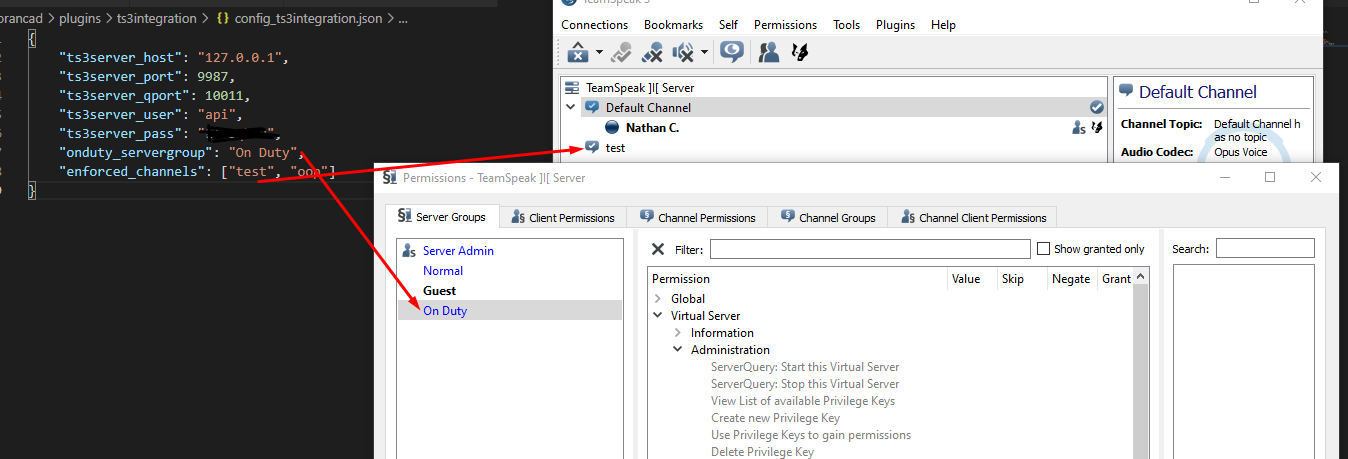
Your TeamSpeak server credentials can either be set in the config or as [convars](#advanced-configuration) in your `server.cfg` file. In the `ts3integration_config.json` file, you can modify the following settings:
|                     |                                                                                                                                                                                                                                                      |
| ------------------- | ---------------------------------------------------------------------------------------------------------------------------------------------------------------------------------------------------------------------------------------------------- |
| ts3server\_host     | TS3 Public Server IP                                                                                                                                                                                                                                 |
| ts3server\_port     | <p>Public connection port</p><p>Default is <code>9987</code></p>                                                                                                                                                                                     |
| ts3server\_qport    | <p>Sever Query Port</p><p>Default is <code>10011</code></p>                                                                                                                                                                                          |
| ts3server\_user     | <p>Typically, this will be your server admin username.</p><p>If you do not have one, you <a href="https://www.teamspeak3.com/support/teamspeak-3-add-server-query-user.php">can create a new one</a>.</p>                                            |
| ts3server\_pass     | <p>Typically, this will be your server admin password.</p><p>If you do not have one, you <a href="https://www.teamspeak3.com/support/teamspeak-3-add-server-query-user.php">can create a new one</a>.</p>                                            |
| onduty\_servergroup | <p>Name of the server group that the submodule will grant users when they're on duty.</p><p>You will need to configure this server group with permissions to join specific channels, etc.</p>                                                        |
| enforced\_channels  | A list of channels that units will be kicked from if they log out of the CAD                                                                                                                                                                         |
| logoutGraceTime     | <p>The amount of time between the user logging out of the CAD and being kicked from the TS3 <code>enforced\_channels</code>.</p><p>This prevents brief internet disconnections from the CAD from continually kicking users out of their channel.</p> |

![TS3 - Integration Config](/files/-M_NXfXavVo4qrPia0WY)

### 4. Retrieve Your Individual TS3 ID

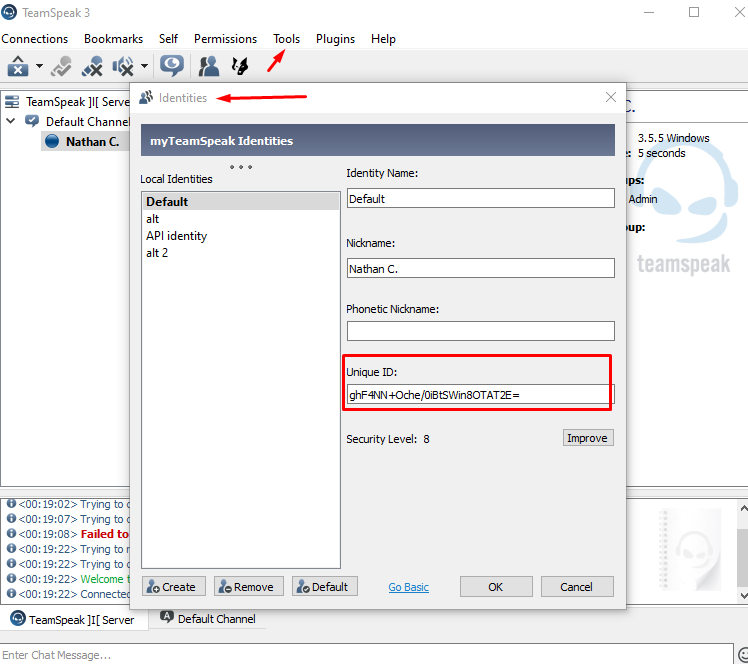
Every member from your community will need to retrieve their unique TS3 ID.\
This is found in TS under Tools > Identities > Default > Unique ID
![TS3 - Retrieve your unique ID](/files/-M_NXhAYOJzt-XAUHuXj)

### 5. Add your TS3 ID as an API ID

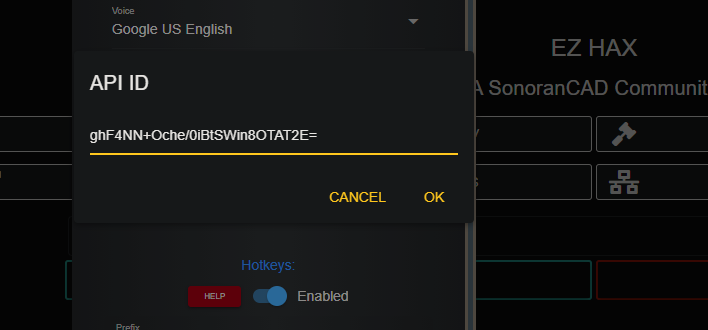
Paste in this TS3 unique ID as a [new API ID in the CAD](/cad/api-integration/getting-started/setting-your-api-id.md).

{% hint style="warning" %}
Every member of your community will need to add their unique ID to their CAD account in your community.
{% endhint %}

![API ID - Paste New ID](/files/-M_NXlrC66O3gJisbOsy)

### 6. Utilize the TS3 Integration

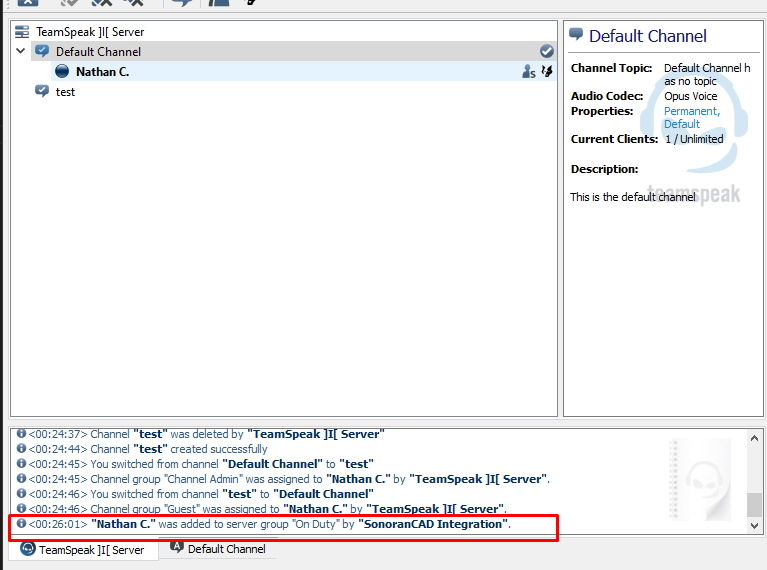
Once configured, when the user joins the TS3 server they will be granted the `onduty_servergroup` once they sign into the police, fire, EMS, or dispatch page.

Signing out of or exiting the CAD will result in the user being kicked from any of the `enforced_channels` from the config.

![TS3 - Server Group Granted](/files/-M_NXo5ViYHESBm2PYZL)

![TS3 - Channel Kicked](/files/-M_NY6eT3LUuHBfCO-pB)

## Advanced Configuration

You may utilize [convars](https://docs.fivem.net/docs/scripting-reference/convars/) in your `server.cfg` if you wish to store your TS3 connection info there instead. There is no default version of these convars preset. If you wish to use convars in your `server.cfg` instead of your config file please **LEAVE ts3server\_user BLANK** in your config file. Convars are as follows:

| Convar Name               | Config Equivelant |
| ------------------------- | ----------------- |
| `sonorants3_server_host`  | `ts3server_host`  |
| `sonorants3_server_port`  | `ts3server_port`  |
| `sonorants3_server_qport` | `ts3server_qport` |
| `sonorants3_server_user`  | `ts3server_user`  |
| `sonorants3_server_pass`  | `ts3server_pass`  |

They can be set in your `server.cfg` following the format of `set [convar] "value"`


---

# Agent Instructions: Querying This Documentation

If you need additional information that is not directly available in this page, you can query the documentation dynamically by asking a question.

Perform an HTTP GET request on the current page URL with the `ask` query parameter:

```
GET https://docs.sonoransoftware.com/cad/integration-plugins/in-game-integration/available-plugins/teamspeak-3.md?ask=<question>
```

The question should be specific, self-contained, and written in natural language.
The response will contain a direct answer to the question and relevant excerpts and sources from the documentation.

Use this mechanism when the answer is not explicitly present in the current page, you need clarification or additional context, or you want to retrieve related documentation sections.