What are Shortcuts?
Shortcuts allow you to record multiple button presses, menu selections, key presses, and replay them with a hotkey, taskbar click, or Stream Deck key. Ex: A Plate shortcut automatically opens a new lookup, selects the plate search type, and highlights the search box for entry.Creating a Shortcut
Recording a Shortcut
Select Shortcuts in the taskbar > Record New Shortcut. This will start recording all menu selections, button presses, and more. Select Stop at the top of your screen once you are finished recording the workflow.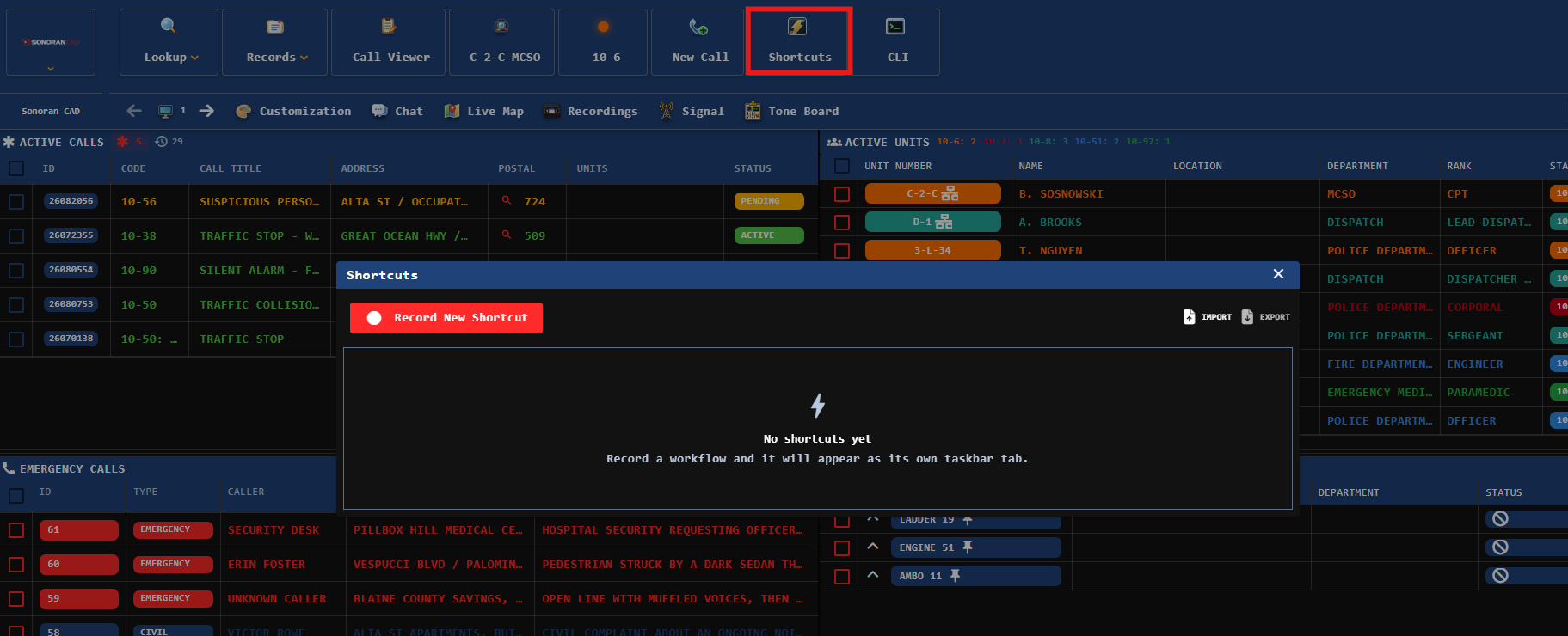
Customizing a Shortcut
Once a shortcut has been recorded, edit the label, icon, optional l hotkey, and optional CLI command. Select Add Step to record an additional step, a keypress, or mark a textbox as a new CLI variable.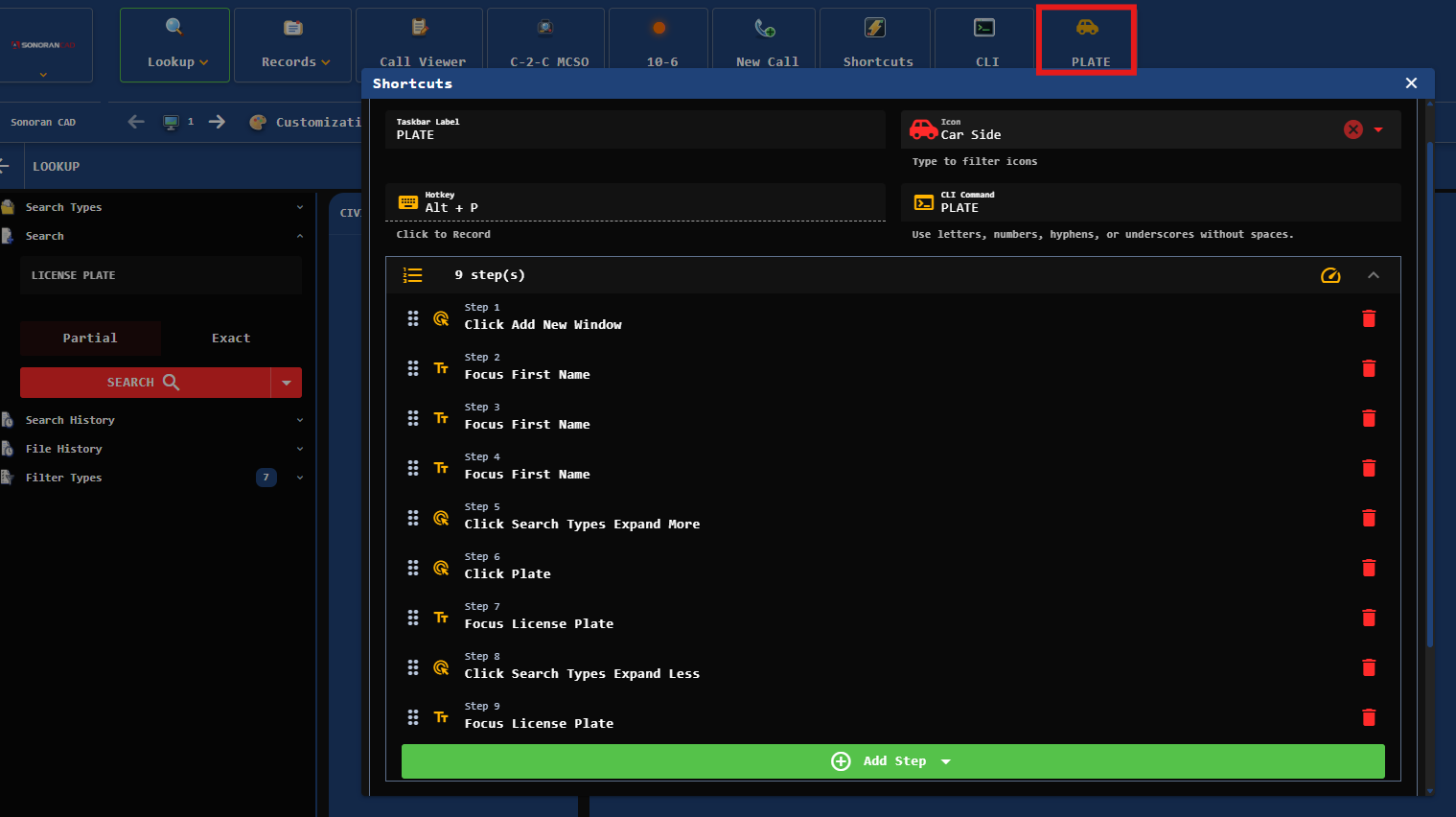
Command Line Interface (CLI)
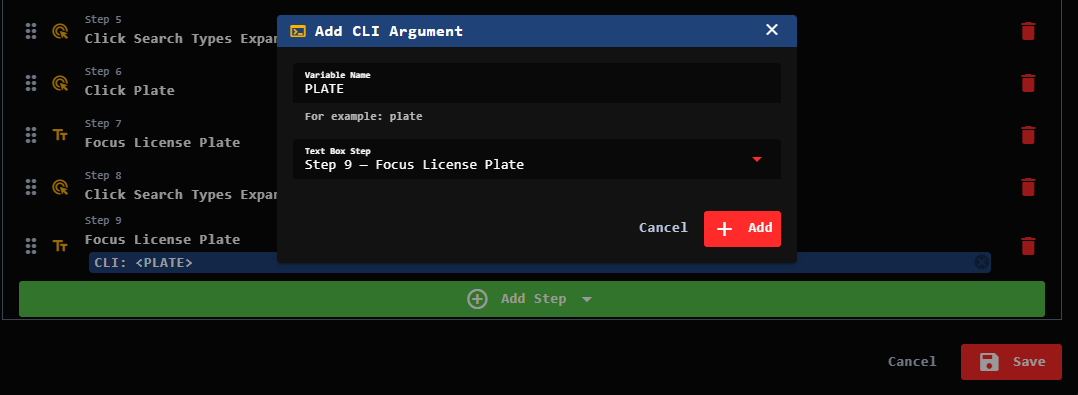
Shortcuts also integrate with the CLI. Enter a CLI Command name to add the shortcut to your CLI options. Additionally, select Add Step > CLI Variable > name the variable and select the step where the variable’s CLI answer should be entered.