# Timers

## What are Dispatch Timers?

Sonoran CAD allows users to create custom dispatch timers. Some example use cases of these timers are as follows:

* Creating a 10 minute pursuit timer before authorizing a pit maneuver
* Reminders to periodically check in on a unit
* Reminders to check in on a specific dispatch call

When a timer has completed, it will flash an icon next to any [attachments ](#timer-attachments)and play a [customizable tone](https://docs.sonoransoftware.com/cad/tutorials/customization/custom-audio-notifications).

## Creating a New Timer

Dispatch timers can be created through multiple different shortcuts.

### Via the Timer Panel

From the start menu: `Unit Management` > `Timers`

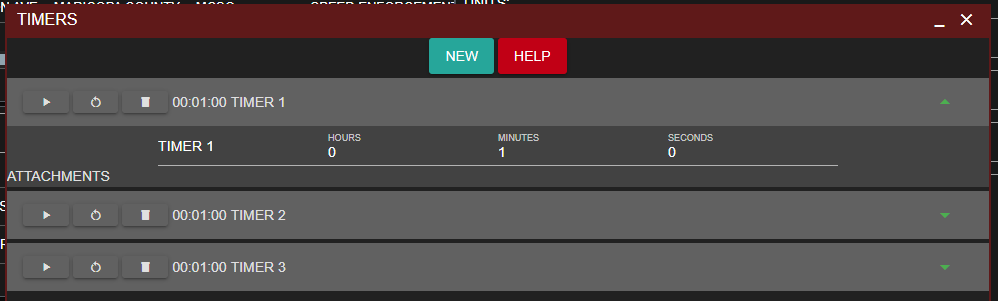
Press `New` to create a new timer.

![Sonoran CAD - Timer Panel](https://232668649-files.gitbook.io/~/files/v0/b/gitbook-x-prod.appspot.com/o/spaces%2F-M4pGN81fb4R6zFhodcu%2Fuploads%2FddXJQ1VYudMDfsMKNd37%2Fimage.png?alt=media\&token=db5dcf8a-6820-4f8a-9a3a-cf83356b3f54)

### Drag-And-Drop to Tab

If you have the timer [panel tab minimized or pinned](https://docs.sonoransoftware.com/cad/customization/customizing-your-layout#7.-tab-system), you can drag a unit, group, or dispatch call right to the tab.
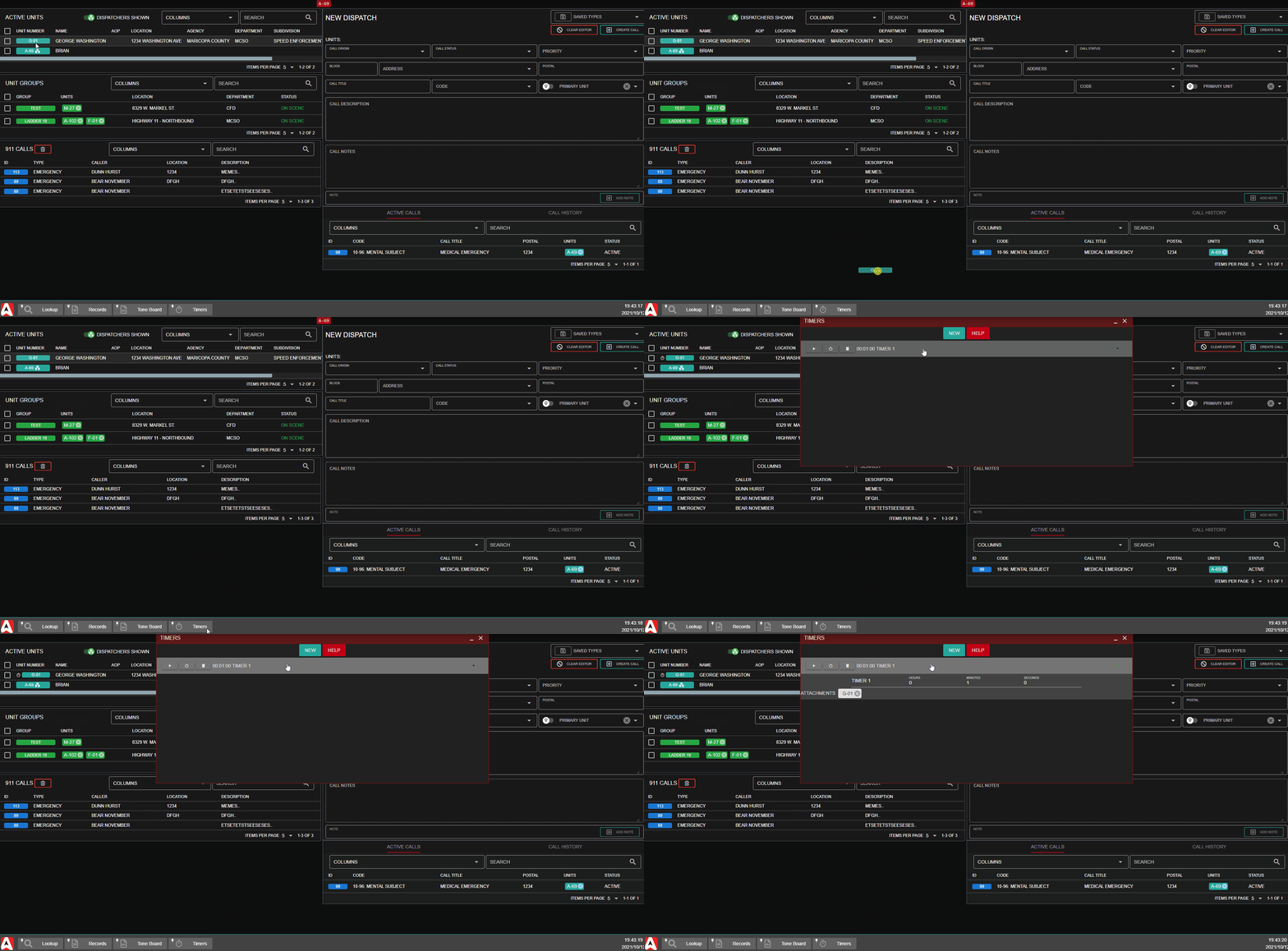
![Sonoran CAD - Drag Unit to Timer Tab](https://232668649-files.gitbook.io/~/files/v0/b/gitbook-x-prod.appspot.com/o/spaces%2F-M4pGN81fb4R6zFhodcu%2Fuploads%2FDbg81doszVVKStRR6rNM%2Ftimer_drag_tab.gif?alt=media\&token=1679c8b7-0cc5-486e-ba63-0bfde2db943f)

### From the Context Menu

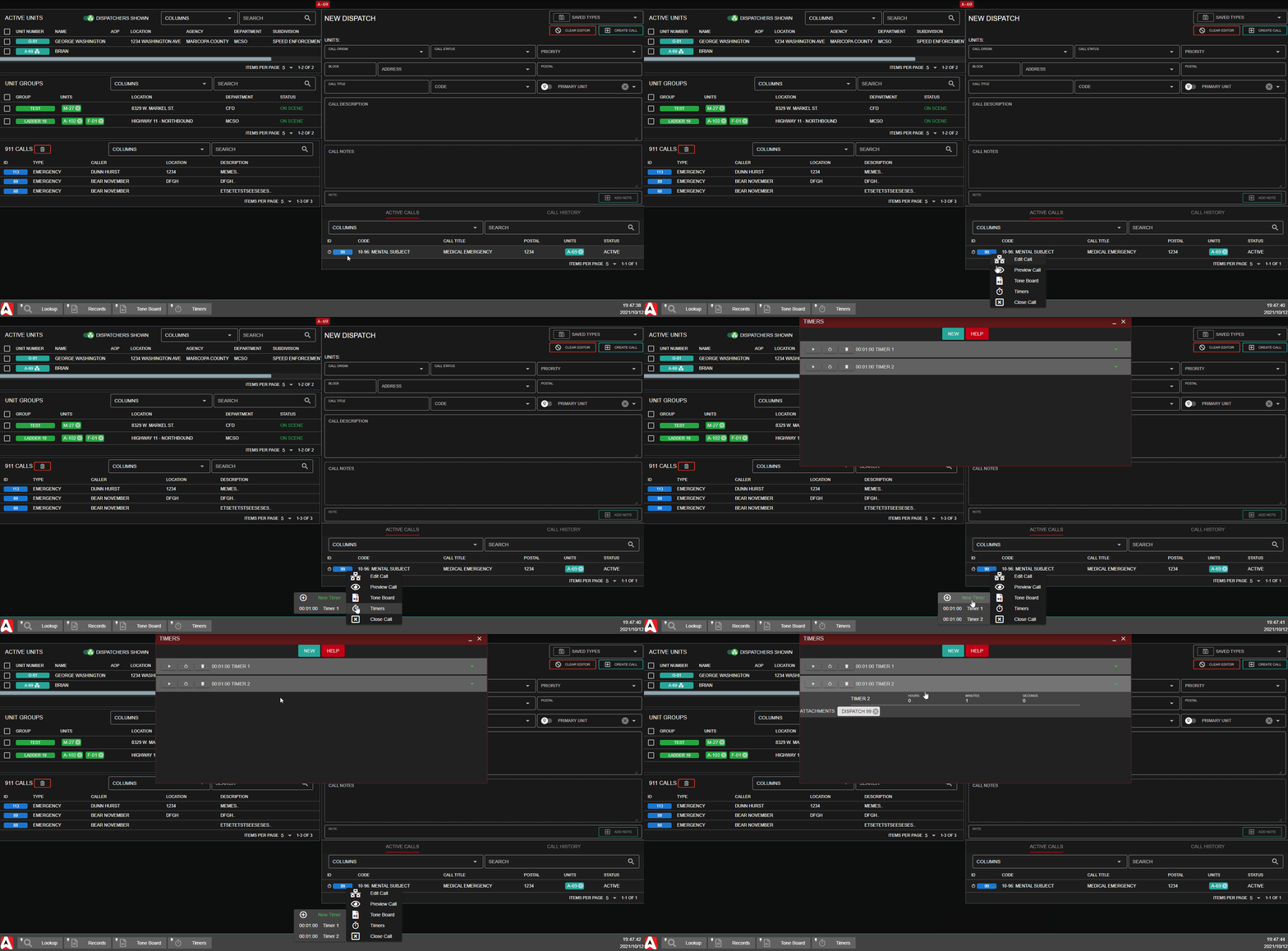
Left click on a unit ID, group name, or dispatch call ID: `Timers` > `New Timer`

![Sonoran CAD - New Timer from Context Menu](https://232668649-files.gitbook.io/~/files/v0/b/gitbook-x-prod.appspot.com/o/spaces%2F-M4pGN81fb4R6zFhodcu%2Fuploads%2FeS2IhDKkRDhpAuDOF3wq%2Ftimer_new_menu.gif?alt=media\&token=ecaaa3b2-f88c-46b5-8b13-e9a3c69b480c)

## Editing a Timer

### Via Timer Panel

The timer panel has options to start, pause, restart, and remove a timer.

Additionally, you can expand the timer to change the name and duration.
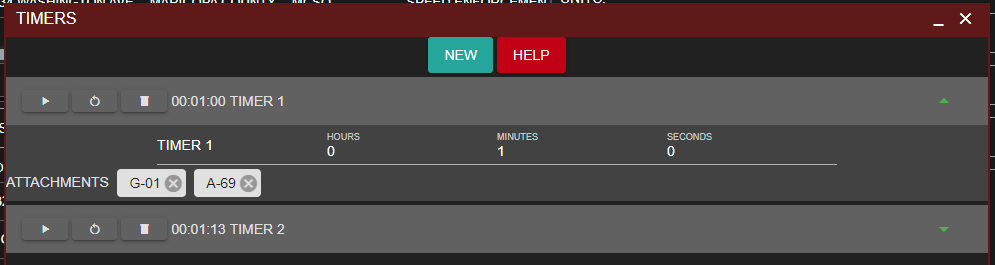
![Sonoran CAD - Timer Panel](https://232668649-files.gitbook.io/~/files/v0/b/gitbook-x-prod.appspot.com/o/spaces%2F-M4pGN81fb4R6zFhodcu%2Fuploads%2Fi9wMPnaQwhZExacc4Q1Q%2Fimage.png?alt=media\&token=357aaecd-2791-4b8c-88b3-ae07ab00d703)

### Via the Context Menu

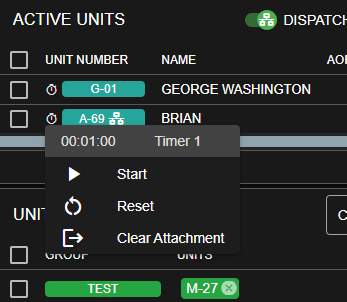
When a unit, group, or call is [attached to a timer](#undefined) you can click on the timer icon. A timer menu will be displayed, allowing you to start, pause, restart, or clear the timer's attachment.

![Sonoran CAD - Timer Context Menu](https://232668649-files.gitbook.io/~/files/v0/b/gitbook-x-prod.appspot.com/o/spaces%2F-M4pGN81fb4R6zFhodcu%2Fuploads%2FvPUVz2q2AyJnF7hpv7gw%2Fimage.png?alt=media\&token=518a852d-9de9-4f71-bace-af1ccc7b6fb1)

## Timer Attachments

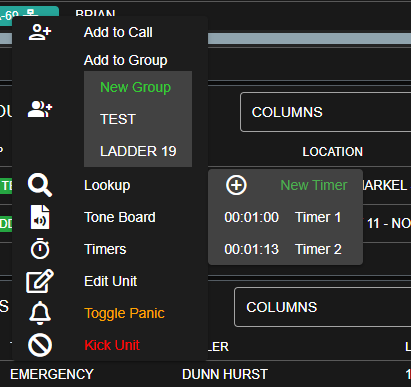
You can attach a unit, group, or call to a timer. This will display a timer icon next to the attached unit or call. You can hover over this icon to view the remaining time, or click on it for the timer context menu.

### Via Drag-And-Drop

In addition to dragging a unit, group, or dispatch call to a minimized tab you can also drag it to a timer in the panel.
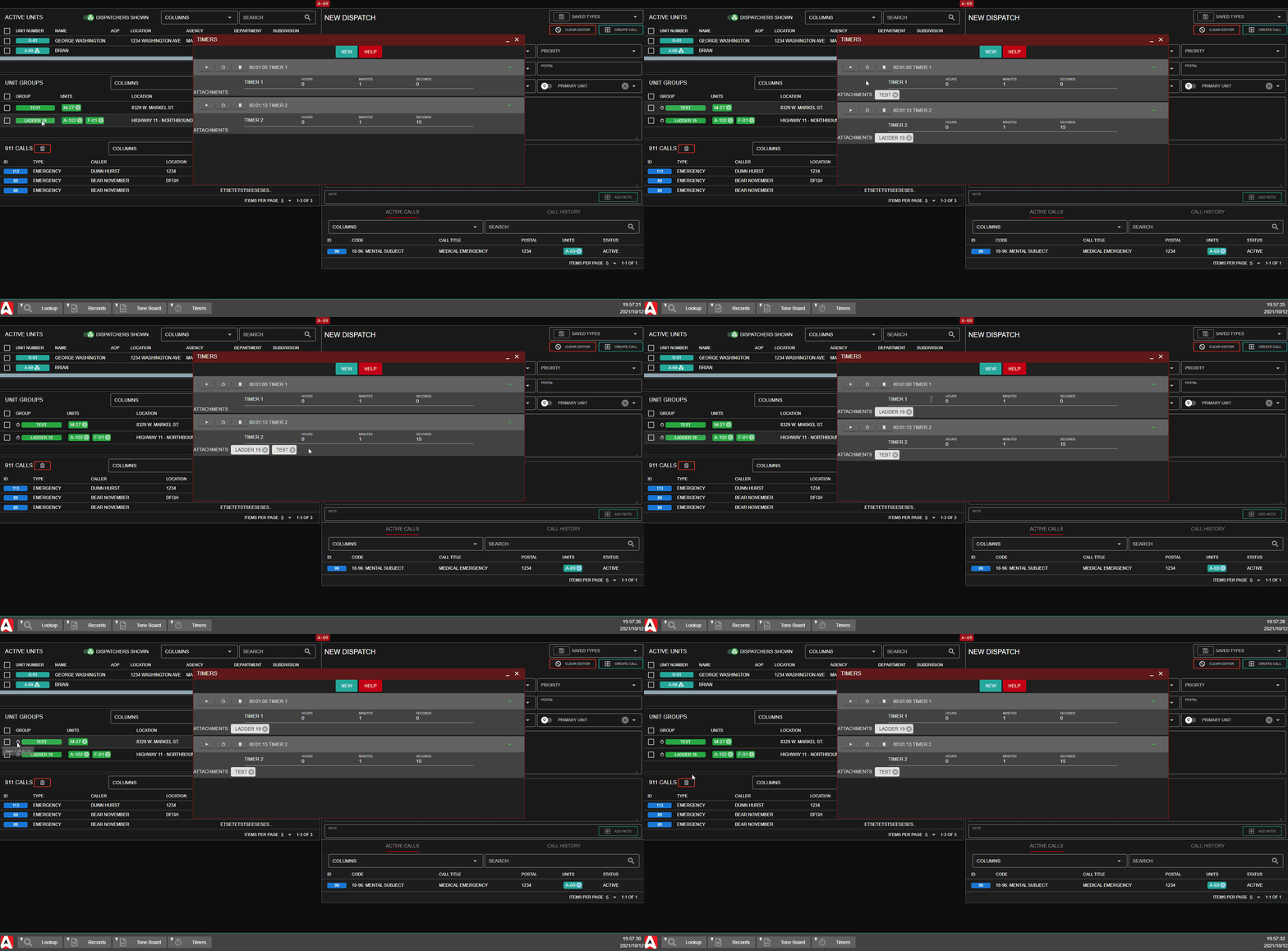
![Sonoran CAD - Drag Unit to Timer Panel](https://232668649-files.gitbook.io/~/files/v0/b/gitbook-x-prod.appspot.com/o/spaces%2F-M4pGN81fb4R6zFhodcu%2Fuploads%2Fa7SCGQ6VUFaJz9zqYcDR%2Ftimer_drag_panel.gif?alt=media\&token=83055715-978b-4203-887d-98faaad45442)

### Via Context Menu

Click on a unit, group, or dispatch call: `Timers` > `Select a Timer`

![Sonoran CAD - Attach to Timer from Context Menu](https://232668649-files.gitbook.io/~/files/v0/b/gitbook-x-prod.appspot.com/o/spaces%2F-M4pGN81fb4R6zFhodcu%2Fuploads%2FacjrYQQ4DYyviDIS0beH%2Fimage.png?alt=media\&token=5ef028c2-1bdf-4ea1-bbbc-0b799ae369cf)

## Automations

Timers can also be created via [dispatcher automations](https://docs.sonoransoftware.com/cad/tutorials/dispatching/automations).