# Community Profile

{% embed url="<https://app.guidde.com/share/playbooks/9pgQ43qPRgvuuVcyA8ma8n?origin=G25dDmjNZ2b8ccFUz9X7G7W8T1k1>" %}

![Sonoran CMS - Community Profile](https://3006847189-files.gitbook.io/~/files/v0/b/gitbook-x-prod.appspot.com/o/spaces%2F-MdBOa9OFjtdqw9FdXli%2Fuploads%2Fgit-blob-0e982e333c876362e09be0fc7f6eca0a26381e2b%2FScreenshot%20\(238\).png?alt=media)

## Accessing a User's Community Profile

There are a few ways to view a community profile, which are listed below.

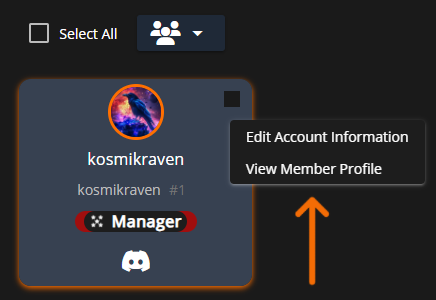
From `Administrative Panel` > `User Accounts`, you can right click on any user, then select `View Member Profile`.

![Sonoran CMS Administrative Panel - Accounts Panel](https://3006847189-files.gitbook.io/~/files/v0/b/gitbook-x-prod.appspot.com/o/spaces%2F-MdBOa9OFjtdqw9FdXli%2Fuploads%2Fgit-blob-b075995f40a089ce4fdabcca6f248e8c112dc166%2FScreenshot%20\(236\).png?alt=media)

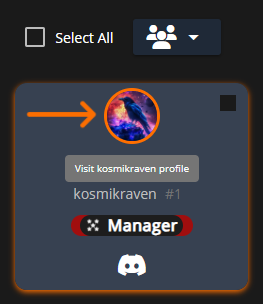
You can also click on any user's account avatar to be redirected to their profile. This can be done from the `User Accounts` page when viewed as a grid, from the `Edit Account Information` popup, as well as from form submissions, forum posts, and any other places where a user's avatar may be displayed.

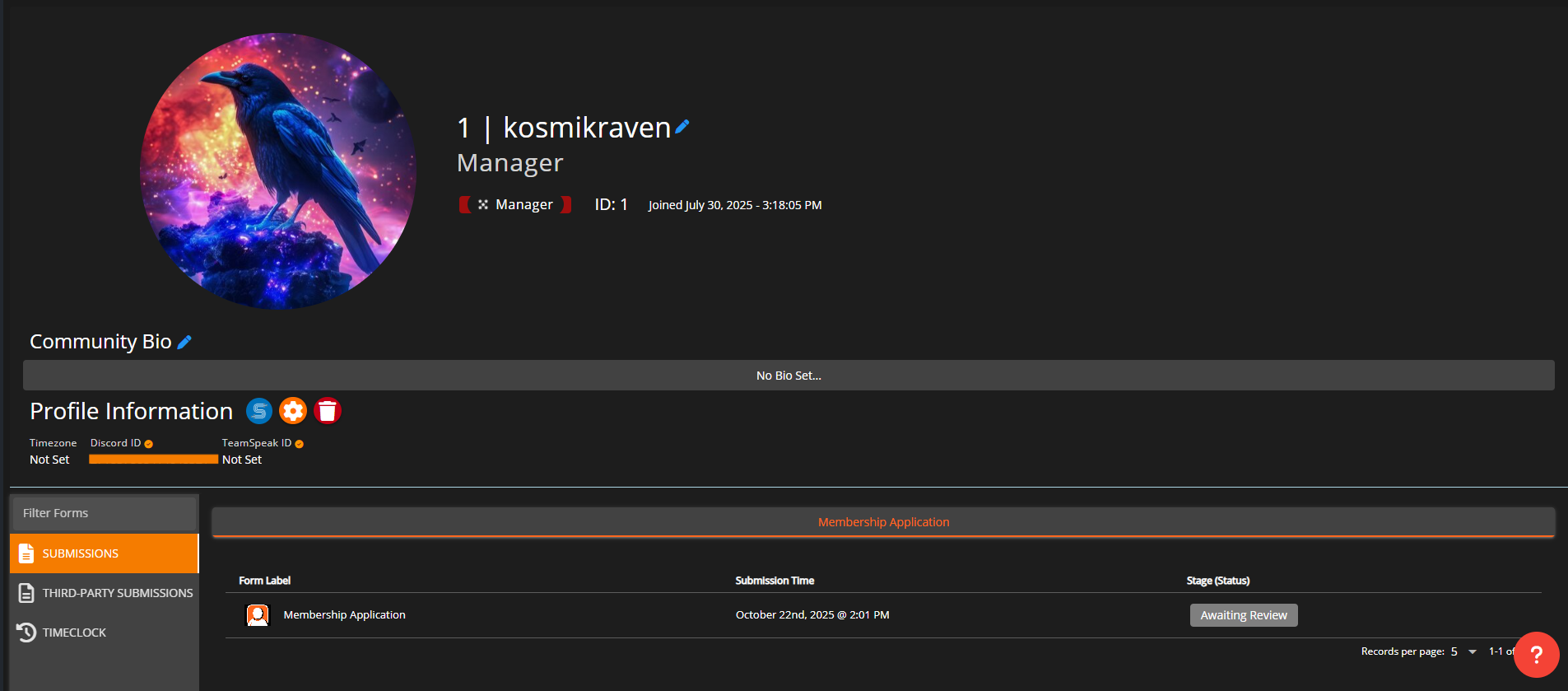
<figure><img src="https://3006847189-files.gitbook.io/~/files/v0/b/gitbook-x-prod.appspot.com/o/spaces%2F-MdBOa9OFjtdqw9FdXli%2Fuploads%2Fgit-blob-5059dac568f7c97be2004d0be1aac938c8b29fc3%2FScreenshot%20(237).png?alt=media" alt=""><figcaption><p>Sonoran CMS - View User's Profile</p></figcaption></figure>

## Customizing Profile Fields

Profile fields can be customized in the admin panel, and communities can control who is allowed to view or edit these fields for both their own profiles and those of other users.

{% content-ref url="../customization/community-profile-fields" %}
[community-profile-fields](https://docs.sonoransoftware.com/cms/tutorials/customization/community-profile-fields)
{% endcontent-ref %}