

Timeclock
Timeclock shift types are configured in the community customization panel.Via In-Game Command
Via In-Game Command
Via In-Game Command
Users can clock in or out of their timeclock by using the
:log command in-game.Format: :log clockin [shift type - optional]Via Discord Command
Via Discord Command
Via Discord Command
Users can clock in or out of their timeclock by using the 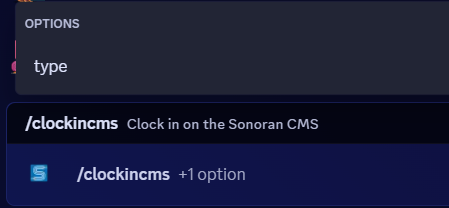
/clickockin <type and /clockout commands in Discord.Via CMS
Via CMS
Via CMS
Users can clock in or out of their timeclock by selecting the timer icon at the top of the CMS navigation bar.
Activity Time
When a user joins the ER:LC game server, an automatic activity timer starts. This timer captures a start and stop time log based on your team. These time logs can be displayed on a roster, or be shown in one of the integrations below.Discord Activity
Discord Shift Reports
Discord Shift Reports
Discord Shift Reports
When a player exits the ER:LC server, a shift report will automatically be direct messaged to them via Discord.These notifications can be disabled in the CMS notification settings.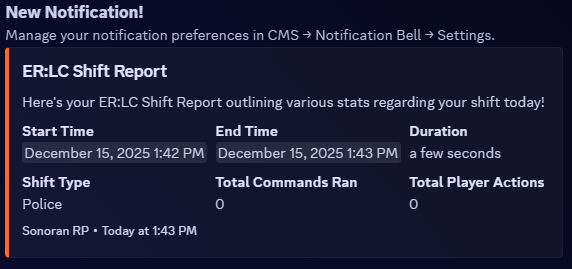
Discord Activity Review
Discord Activity Review
Discord Activity Review
Users can review their activity logs with the
/activity <type> Discord command. This allows you to review manual timeclock shifts or automatic activity time logs.