What Is ER:LC Vision?
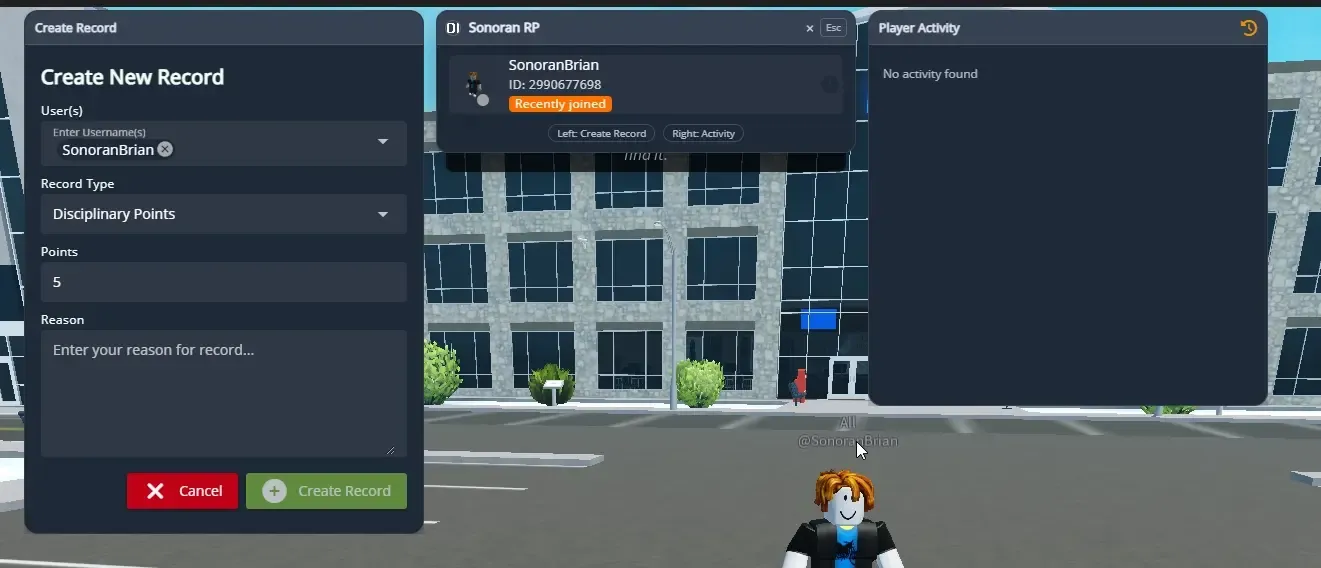
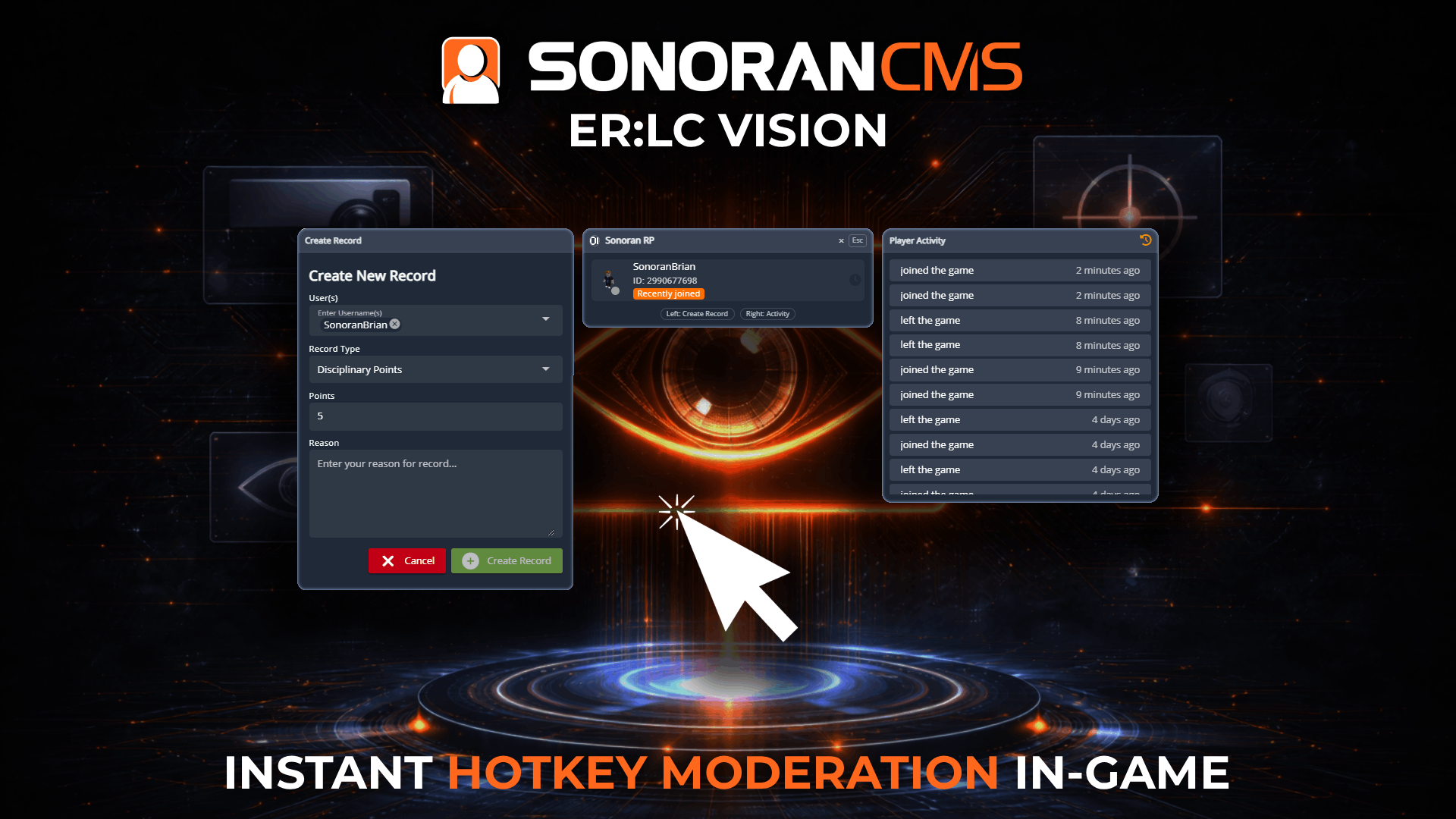
CMS Vision for ER:LC lets users hover over a player’s in-game name, press a keybind, and instantly open an overlay displaying that player’s latest activity with the ability to create custom records on the spot. By eliminating the need to leave the game to access or manage records, it streamlines workflows and significantly reduces response time.Using Vision
Vision Settings
Keybinds
Keybinds
Vision keybinds and other settings are available under Community Settings > VisionBy default, the vision keybind is Command/Control + Shift + O. This can be customized by clicking on the keybind to record, pressing a new keybind combination, and clicking to save it.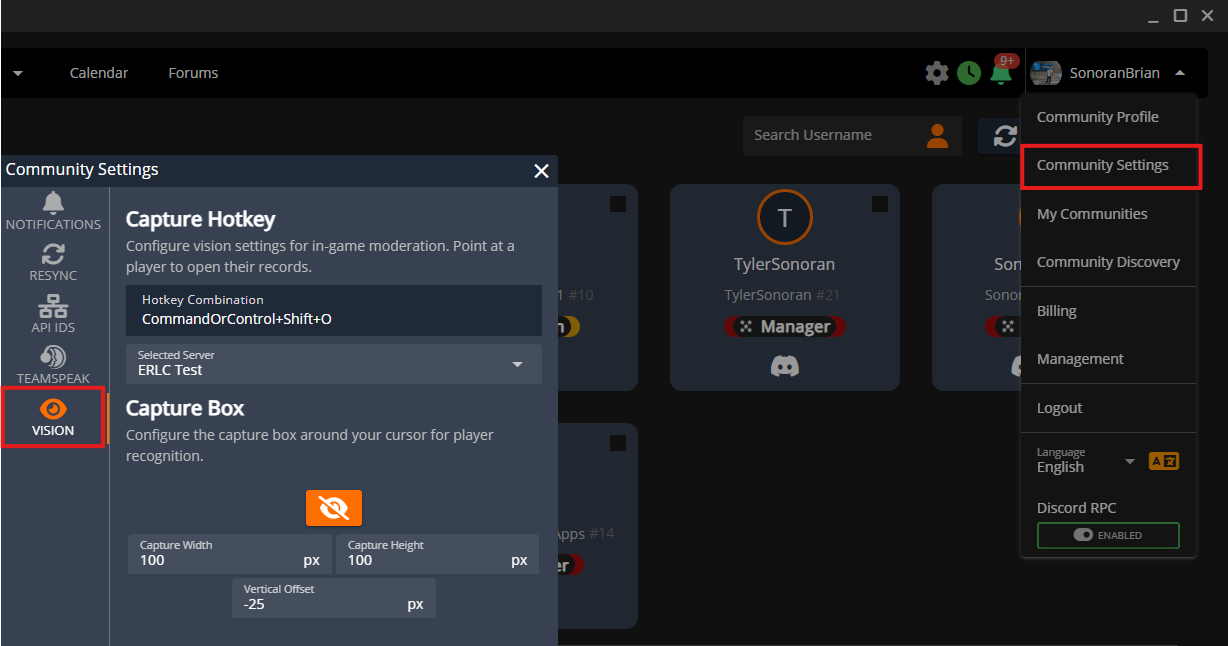
Capture Zone
Capture Zone
Vision captures a small area around your cursor to detect and search for usernames. The capture box can be adjusted in size and vertically offset from the cursor for precise alignment. Use the eye icon to preview the exact dimensions and position of the capture area in real time.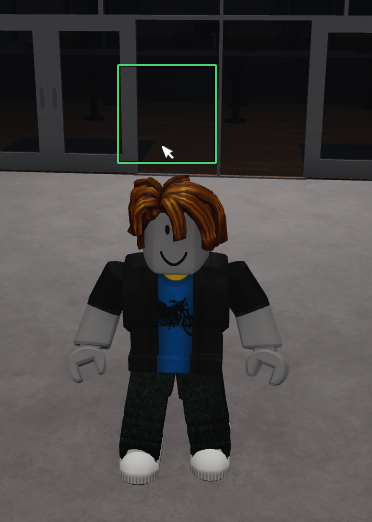
Server Selection
Server Selection
The CMS ER:LC panel supports configuring multiple servers under a single community. By default, Vision selects the first server in the list. If your community has multiple servers configured, a server selection option will appear in the Vision settings—make sure to choose the server you are currently playing in to ensure accurate data.
CMS User Permissions
CMS Vision User Permissions
CMS Vision User Permissions
In order to utilize CMS vision, users must have the following rank permissions:
- Create Record (Left Panel):
- Disciplinary Panel (To add Disciplinary Point Records)
- Kick/Ban/Warn Player (To add Kick/Ban/Warn Records)
- View User (Center Panel): View Game Panel
- View Activity (Right Panel): View Game Panel
Mac OSX Permissions
Granting Vision Access on OSX
Granting Vision Access on OSX
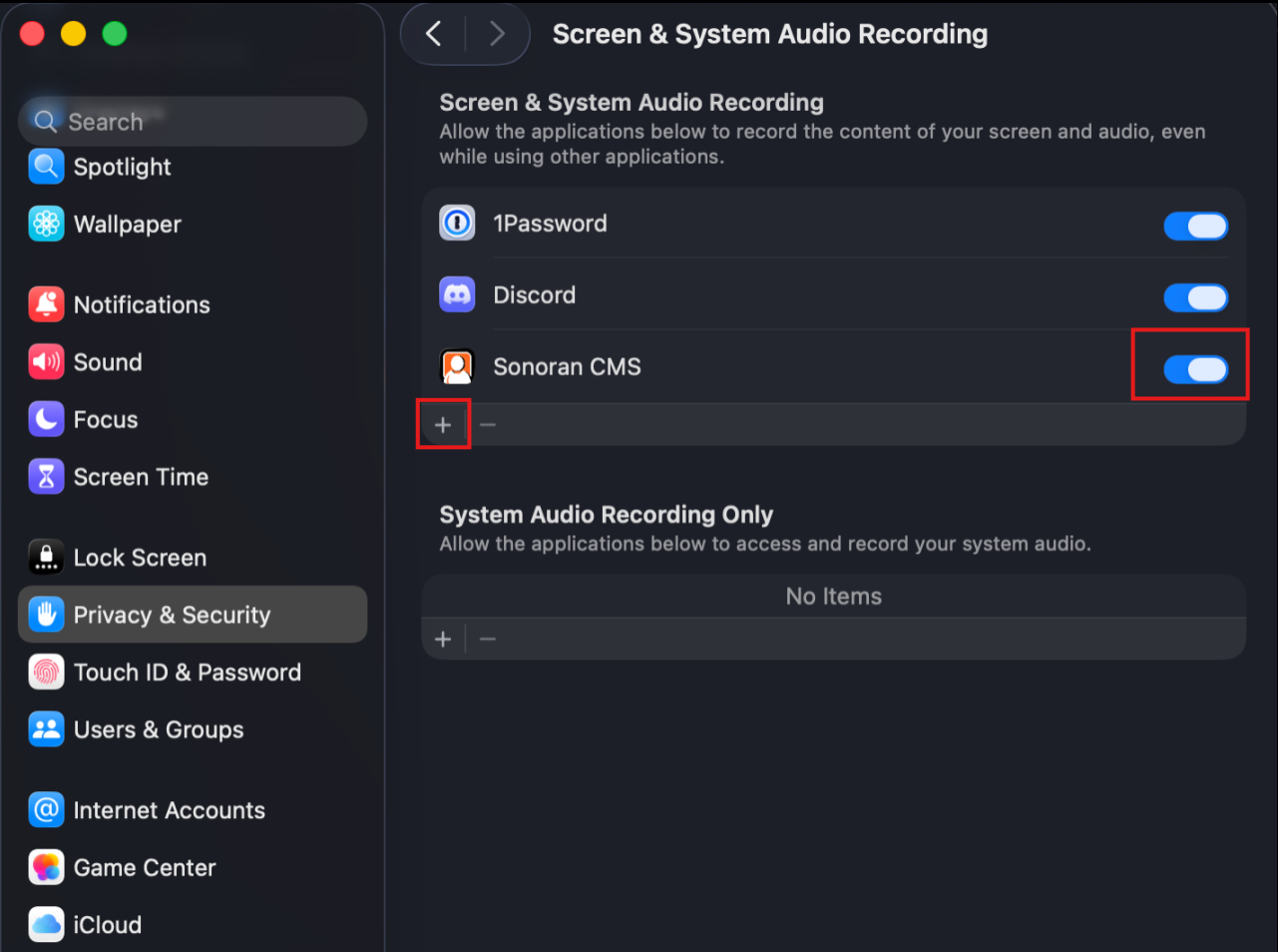
On Mac OSX, Vision requires explicit permissions to access your screen. If not granted, a red notice will appear in the settings menu. Select Open System Settings > Select the + Symbol > Select Sonoran CMS from your Applications folder.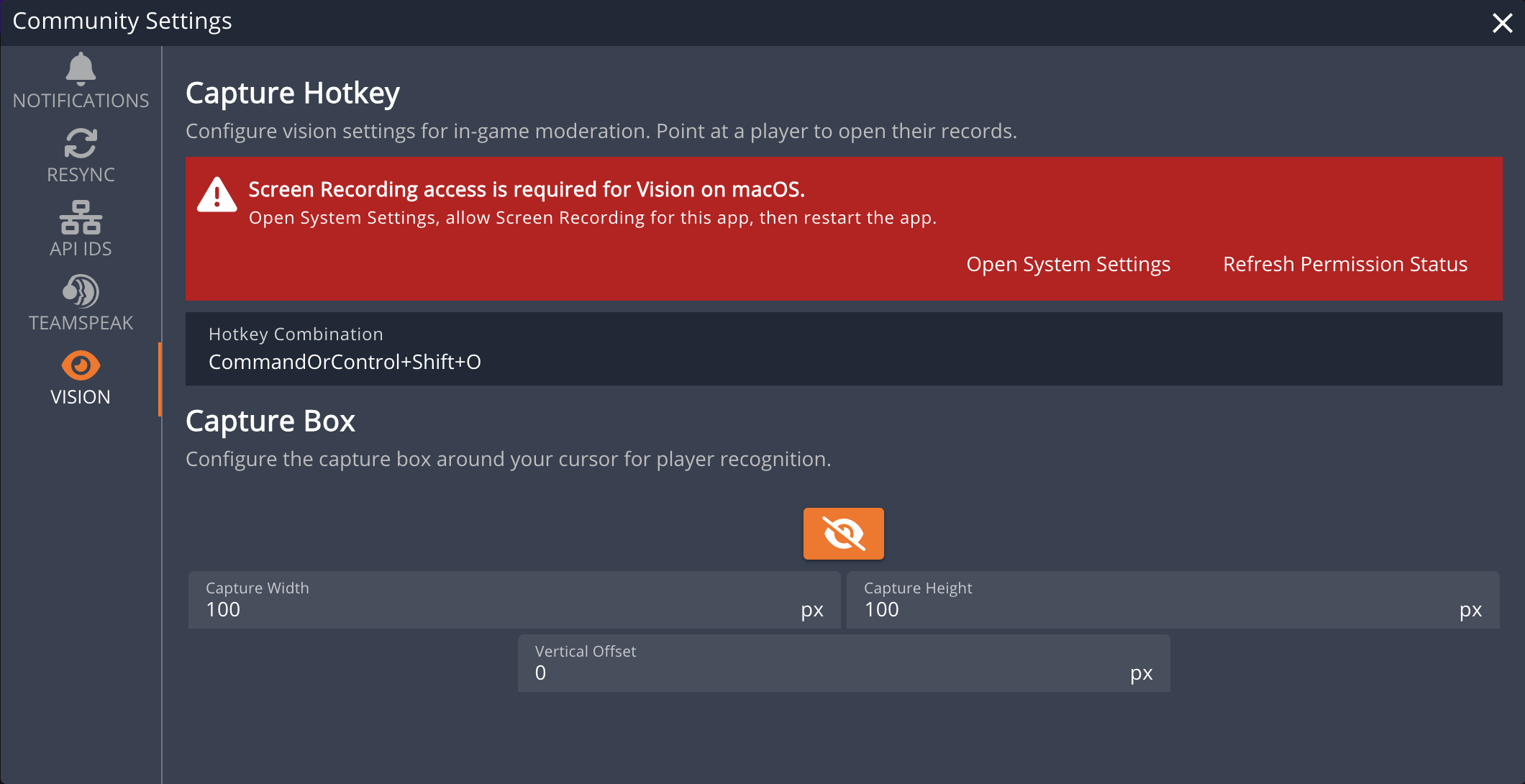
Vision In-Game
- Open the CMS Community
Open the CMS desktop application for OSX or Windows, then open the CMS community that you are in.
- Hover and Hotkey
Once in-game, with the CMS application and community open, move your cursor just below a username and press your hotkey combination.
- Access the Player Menu
Once the hotkey is pressed, the player card popup will display on your screen.
- Press ESC to close this menu
- Press Left Arrow Key to access the new record panel
- Press Right Arrow Key to access the player’s recent activity