

Initial Setup
Displaying the In-Game Radio
By default, the radio display remains visible on-screen at all times. Users can toggle focus on the radio, enabling interaction when needed and un-focusing when done.- Use the customizable keybind (Default is
~right above tab) - Use the
/radiocommand
Hiding the In-Game Radio
A. Via Button
Use the purple button or icon on the radio frames: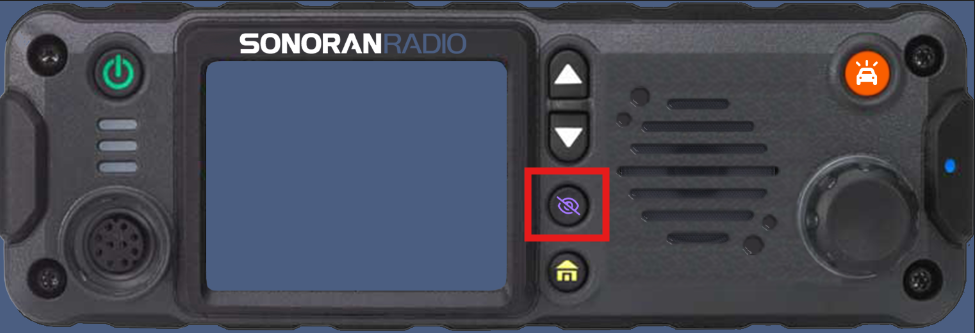 Vehicle Radio: Hide Button
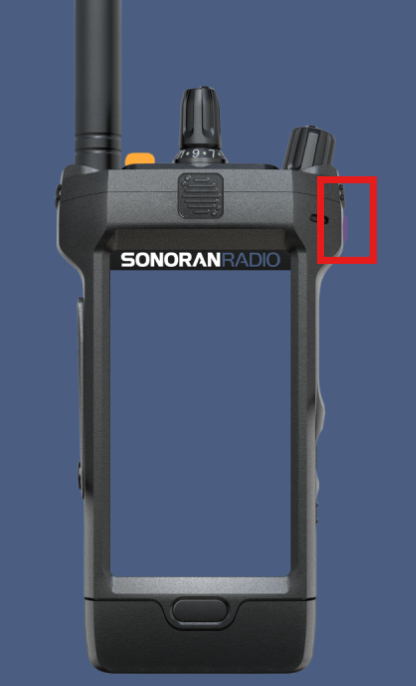 Handheld Radio: Hide Button
B. Via Command
Use the/radio hide command in-game to hide the radio.
C. ESC Options
You can also customize the display behavior when pressingESC.
Logging In
Login with Account
Login with Account
When you first use the in-game resource, you’ll need to log in.
A 4-digit code will appear for you to sign in from your browser.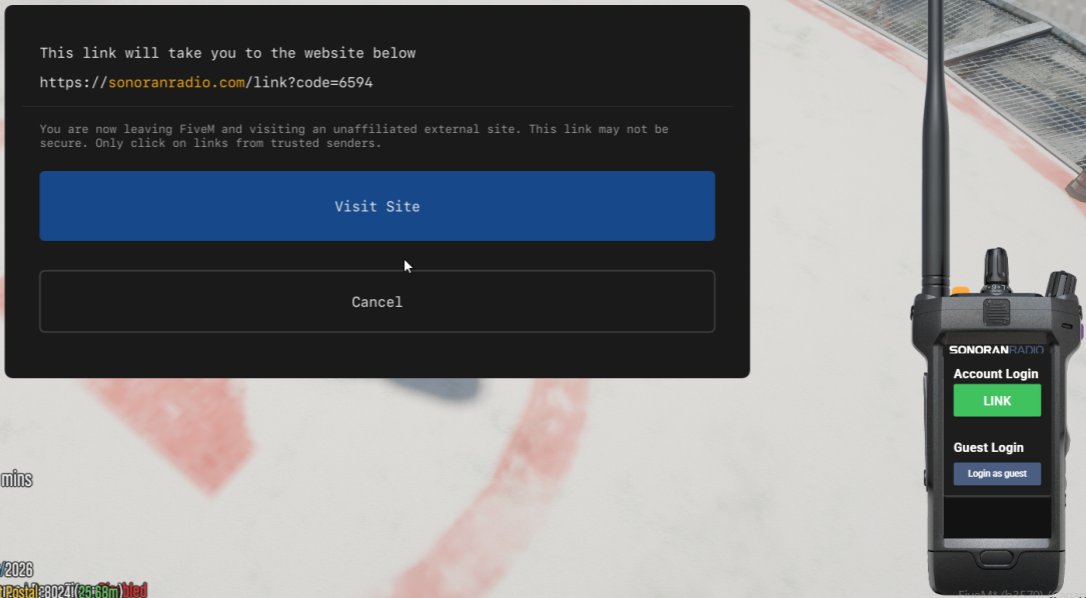 This will open sradio.link in a web browser, log in if needed, and your radio will be linked automatically with a 4-digit code.
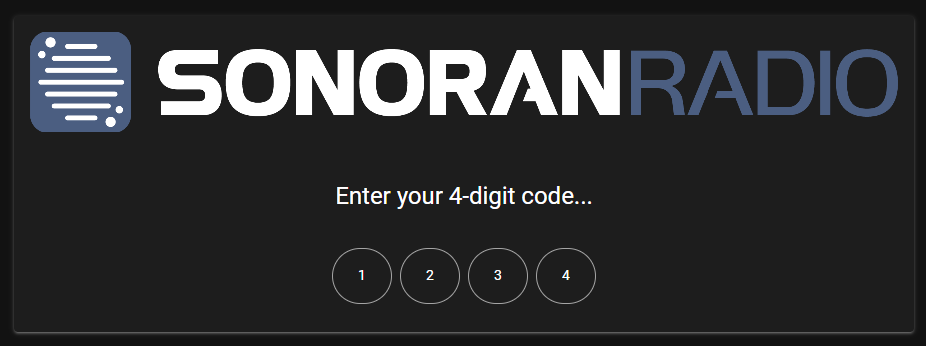 Sonoran Radio - Activate Link
A 4-digit code will appear for you to sign in from your browser.
This will open sradio.link in a web browser, log in if needed, and your radio will be linked automatically with a 4-digit code.Sonoran Radio - Activate LinkLogin as Guest
Login as Guest
When you first use the in-game resource, you’ll need to log in.
If your community has ACE permissions configured, no account creation or link is necessary.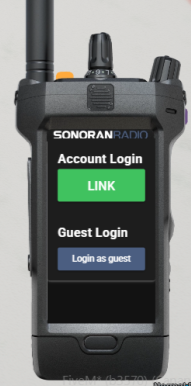 Select Login as guest to bypass the account link and start using your radio. This guest option will only display if
If your community has ACE permissions configured, no account creation or link is necessary.
Select Login as guest to bypass the account link and start using your radio. This guest option will only display if acePermsForGuests is set to true.If Config.forceGuestLogin = true it will bypass this screen and automatically login radio users in as guest using ACE permissions.Permission Configuration
Learn how to configure ACE permissions for the radio.Display Name
Custom display names are saved locally in your cache and automatically restored on future guest logins.Guest usernames are set in the following priority order (whichever is found first):- Last used guest display name
- Custom framework function
- First and last name from QBCore, QBox, or ESX.
- In-game display name
Logging Out
You can logout/un-link your in-game radio via the settings menu (gear icon).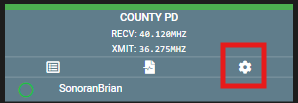 In-Game Radio - Settings
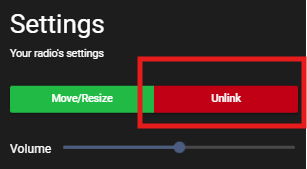 In-Game Radio - Unlink
Using the In-Game Radio
Setting your Push-To-Talk (PTT) Keybind
You can customize your PTT button in your GTA Settings.Connecting and Switching Channels
Channel Selection via Knob
Channel Selection via Knob
The radio will connect when you turn it on with the power button (unless you need to login first).Previous/Next Channel (In Group)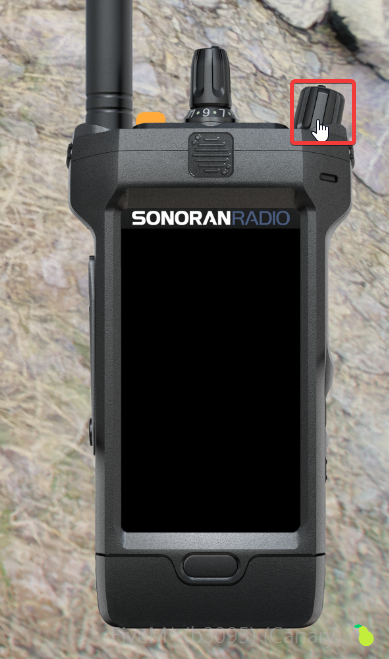
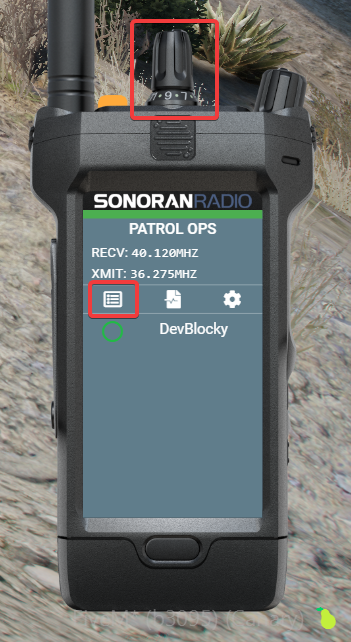
- Left click the top knob to rotate to the next channel inside the channel group.
- Right-click the top knob to change its mode from channel changing to group changing.
- Left click the top knob to rotate to the next channel group.
Select the channel menu icon to open the channel selection options. Click on the channel you wish to transmit on.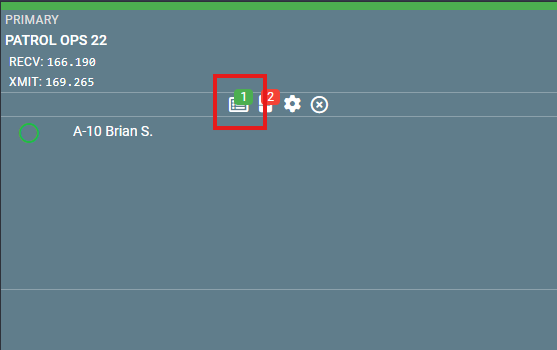 Modern UI - Channel Menu Icon
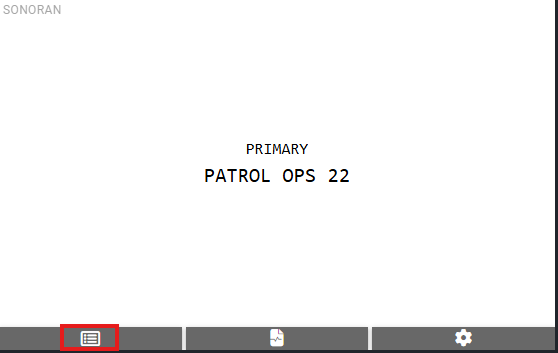 Text UI - Channel Menu Icon
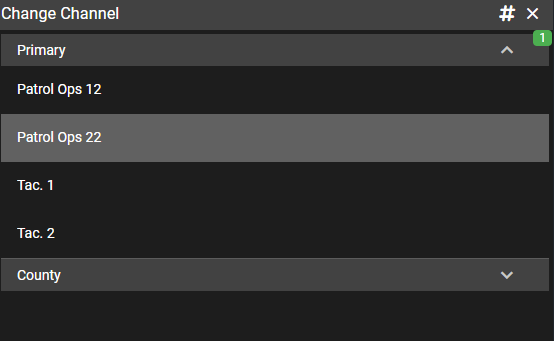 Modern UI - Channel Selection
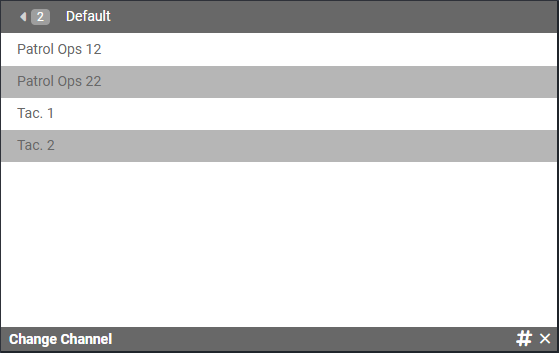 Text UI - Multi-Channel Selection
CTRL + Click allows you to select multiple channels to transmit on at once.Modern UI - Channel Menu IconText UI - Channel Menu IconModern UI - Channel SelectionText UI - Multi-Channel SelectionChannel Selection via Hotkeys, Commands, and Stream Deck
Channel Selection via Hotkeys, Commands, and Stream Deck
Channels can also be changed via:
Channel Scanning/Listening
Scanning Radio Channels
Scanning Radio Channels
Scanning a radio channel allows users to hear all transmissions, even if they are not actively transmitting on that channel. However, transmissions on the primary channel (the one you are actively talking on) will take priority, muting transmissions from scanned channels whenever someone speaks on the primary channel.Selecting Scanned Channels (Modern or Text Display)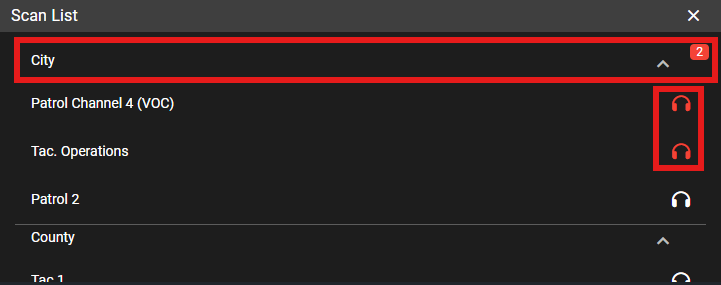
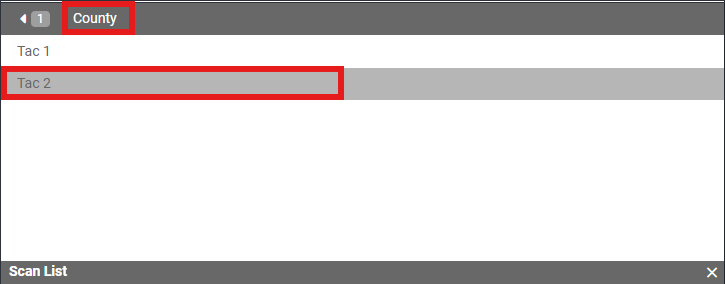 Users can also create a scan list to swap between multiple scanned channels at once.
- Select the Channel Scan Icon
- Select the channel group to view the contained channels
- Click on a channel to toggle on/off scanning
Users can also create a scan list to swap between multiple scanned channels at once.Custom Scan Lists
Scan Lists
Scan Lists
Users can scan one or more channels to listen without transmitting. For monitoring multiple channels, “Scan Lists” let users group channels and easily switch between them.Creating a Scan List (Modern or Text Display)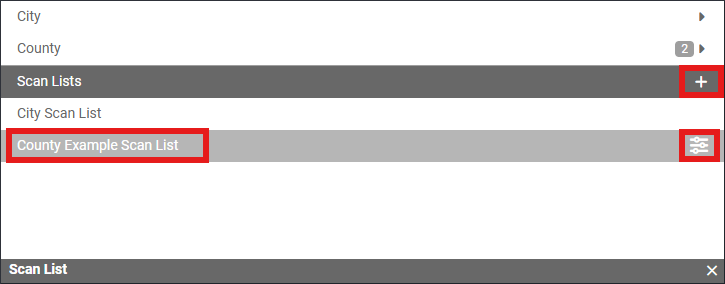
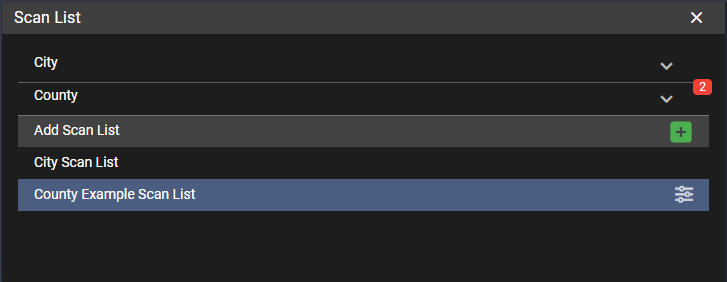
- Toggle scanning on one or more channels.
- Select the
+icon next toScan Liststo create a new scan list with the current selection. - Scan lists can be reordered via drag-and-drop.
- Select the adjust button to rename or remove the scan list.
- Click on the scan list to scan all of the channels inside of it.
- Scan lists can be reordered via drag-and-drop
Adjust Volume
Your radio volume also controls how loudly nearby users hear the radio chatter.
Radio Volume
Radio Volume
System-Wide VolumeIn the settings menu (gear icon) you can adjust the radio’s total volume output. 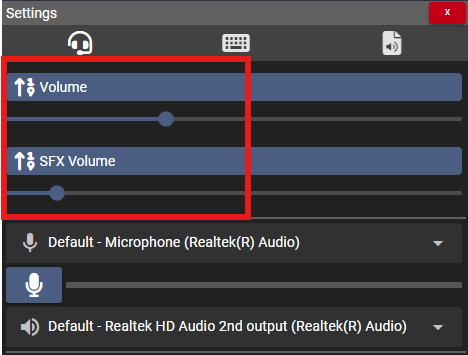 Per-User VolumeYou can also right-click on any user to adjust their volume specifically.
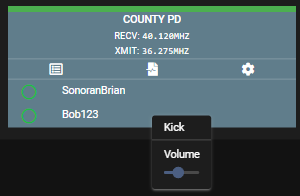 Per-Channel VolumeSelect the volume icon to change the current channel’s transmission volume.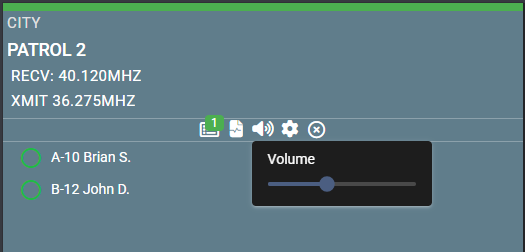
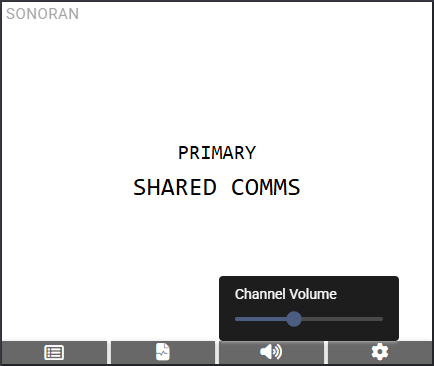 Volume HotkeyYou can also use the in-game keybind to quickly adjust volume.The adjustment amount is customizable in the settings menu.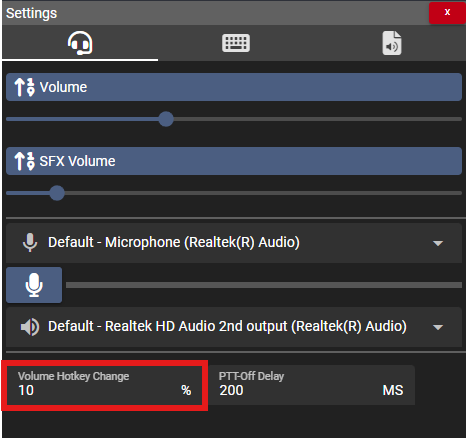
Per-User VolumeYou can also right-click on any user to adjust their volume specifically.Per-Channel VolumeSelect the volume icon to change the current channel’s transmission volume.Volume HotkeyYou can also use the in-game keybind to quickly adjust volume.The adjustment amount is customizable in the settings menu.Adjust Volume With Sirens
Automatic Volume Increase w/Sirens
Automatic Volume Increase w/Sirens
When in-game, turning on your sirens will increase your overall radio volume by the configured amount. Turning your sirens back off will lower the volume back down.This feature is automatically integrated with Luxart Vehicle Control.
If the resource is not named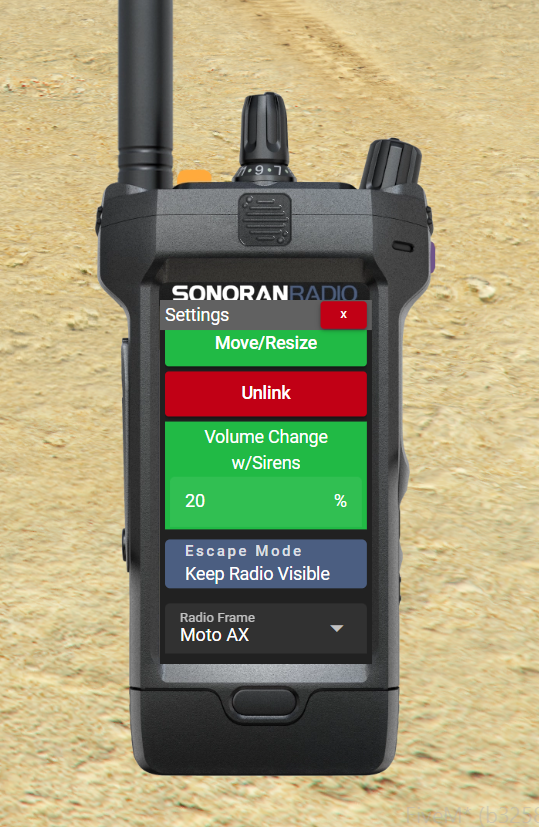
If the resource is not named
LVC, the config.luxartResourceName value must be updated.For communities not using LVC, the functionality will fall back to a FiveM native that will trigger the functionality if either lights or sirens are activated.Move and Resize the Radio
If you move your radio too far off of your screen:Use
/radio reset to reset the size and position.Radio Move and Resize
Radio Move and Resize
On the radio screen, open the 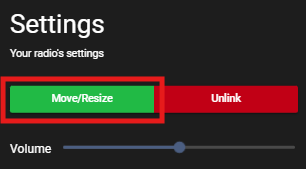
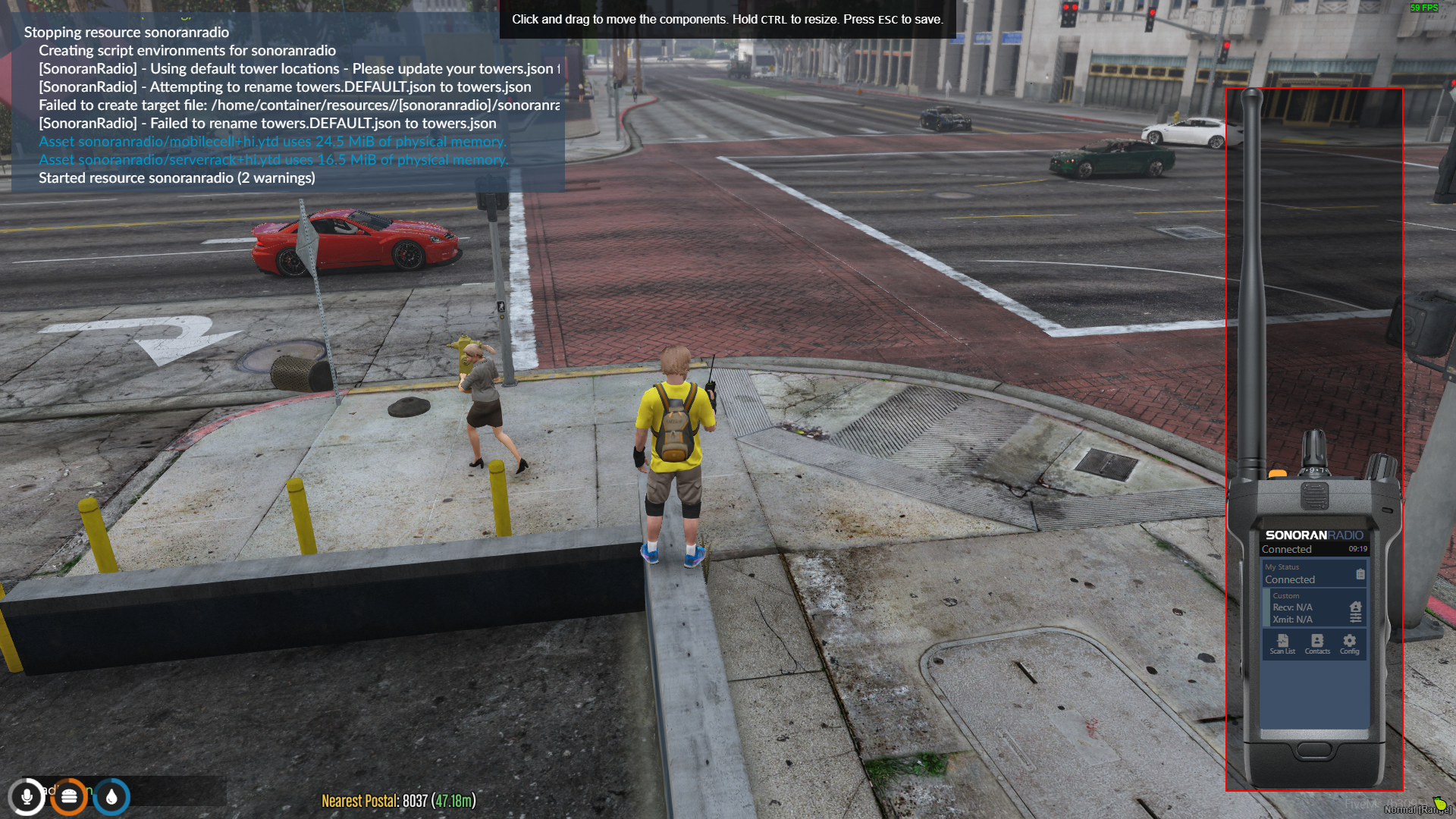
Settings modal by pressing the gear icon.Select Move/Resize- Click and drag the radio to change it’s position on your screen.
- Hold
ctrland drag to resize the radio. - Press
escto save the new size and position.
Escape Mode
ESC Radio Display Behavior
ESC Radio Display Behavior
The Escape Mode selector changes the in-game radio display behavior after pressing
The server default for this setting can be configured in the config’s
ESC.The server default for this setting can be configured in the config’s
defaultEscapeMode property.Keep Radio Visible- The radio stays visible on
ESC
Hide Radio- The radio closes on
ESC
XMITT (PTT)- The radio closes on
ESC, but is visible while transmitting
Panic
In-Game Panic
In-Game Panic
Pressing the orange panic button on the in-game radio toggles your panic status.This can also toggle your panic status in Sonoran CAD.Dispatchers will also be able to see and clear your panic status.Sonoran Radio has a configurable option to automatically press a users PTT button for a configurable amount of time when the user presses their radio panic button: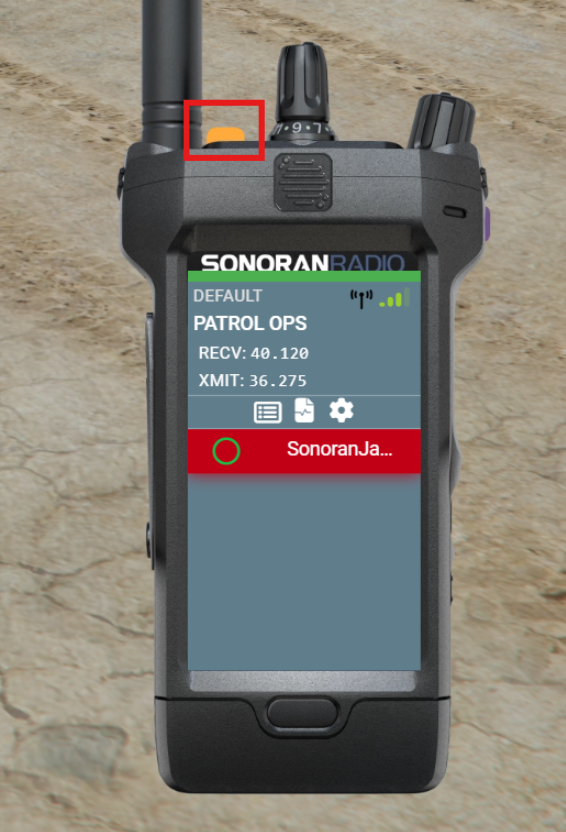
Display Names
Update User Display Name
Update User Display Name
Radio Types
Sonoran Radio offers three radio platforms: handheld, top-down HUD, and vehicle.All three radio platforms can have customizable frame styles.
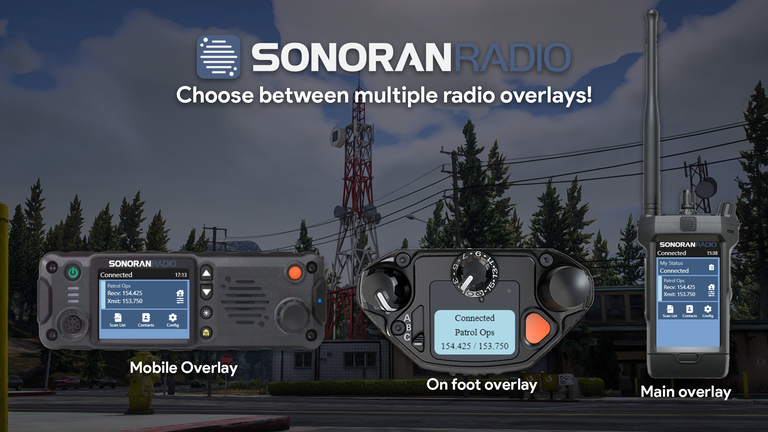 When opening the radio via
 /radio the handheld radio will display on-screen.The vehicle UI will display when opening the radio inside of a vehicle.
The top-down HUD style can be viewed with the
/radiohud command.
Change Radio Frames
The settings menu also allows you to customize your radio frame: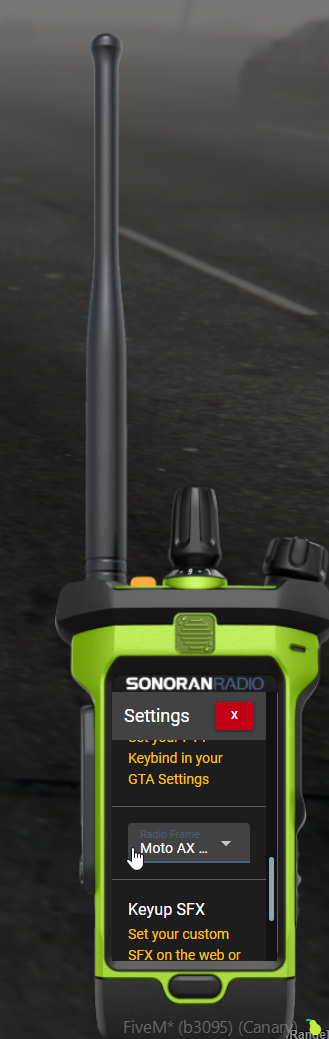 Sonoran Radio - Custom Frames
Learn more about customizable radio frames:
Sonoran Radio - Custom Frames
Learn more about customizable radio frames:
FiveM Radio Frames
Civilian Usage
Placing an Emergency (911) Call
Civilians can place an emergency call to speak directly with dispatchers:Emergency Calls
Custom Animations
Unlock multiple more custom radio animations, FREE with Sonoran Radio pro! Sonoran Radio x Big Daddy Scripts