Traffic Stop Integration
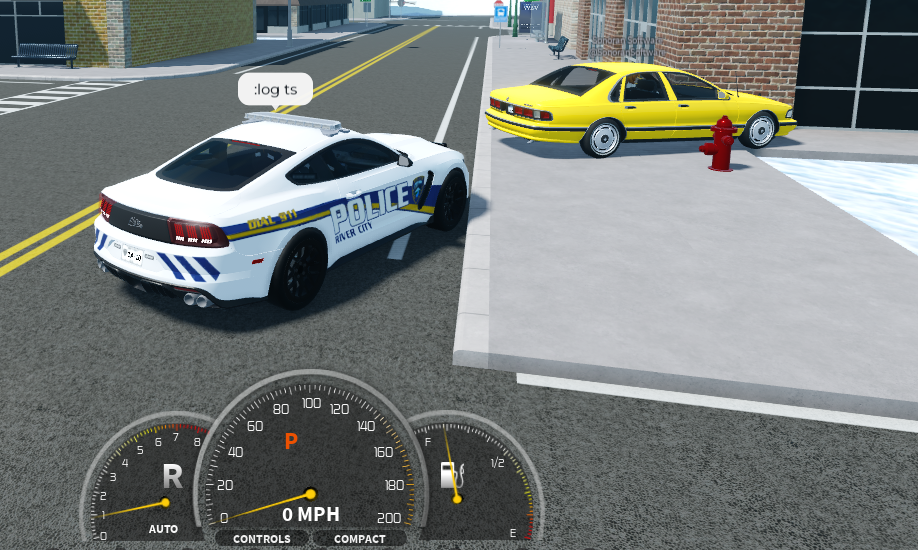
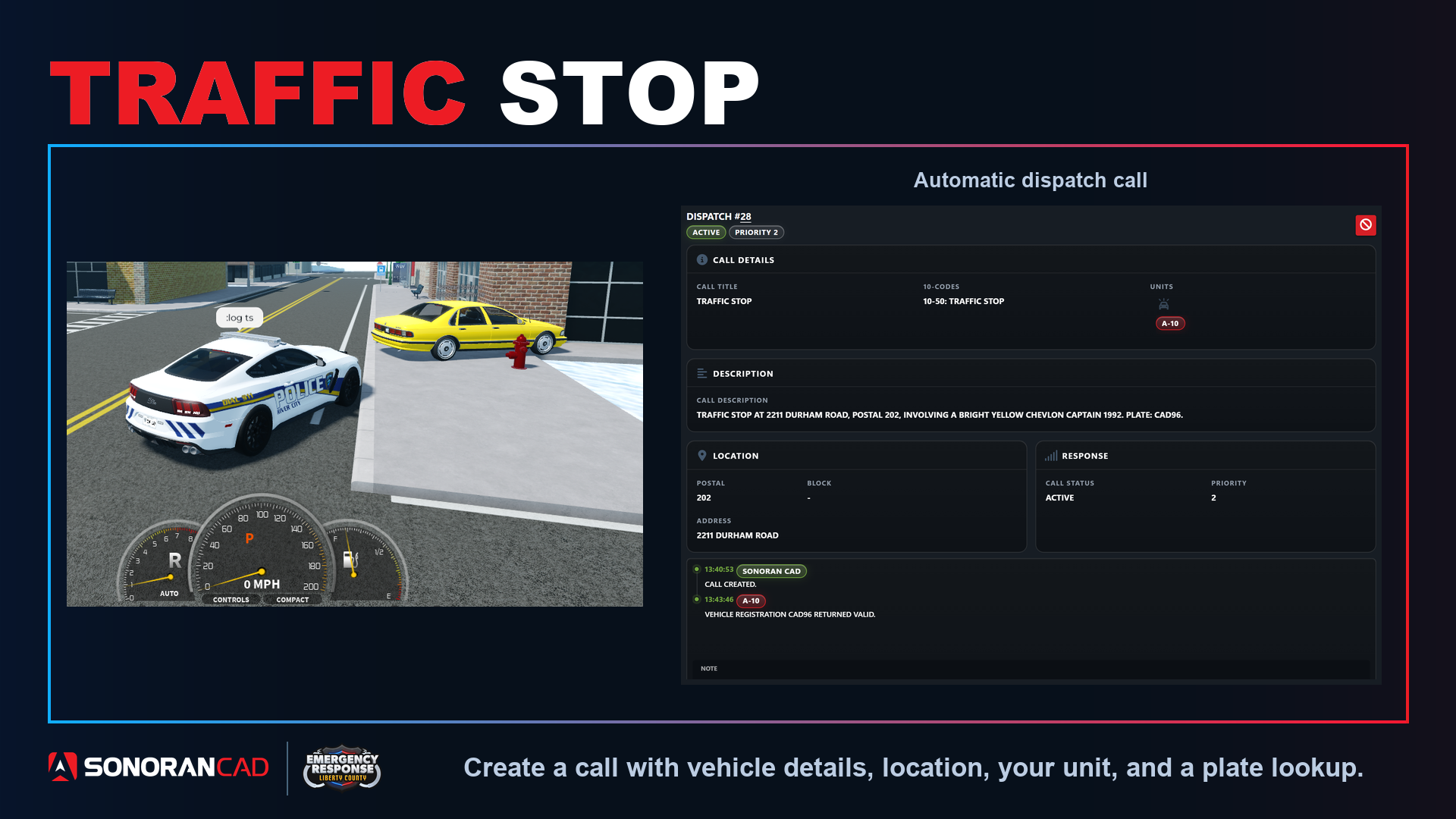 When the the traffic stop command is used a dispatch call will be created in the CAD.
This call will:
When the the traffic stop command is used a dispatch call will be created in the CAD.
This call will:
- Attach the unit that performed the command
- Include the unit’s address and postal code
- Display on the live map
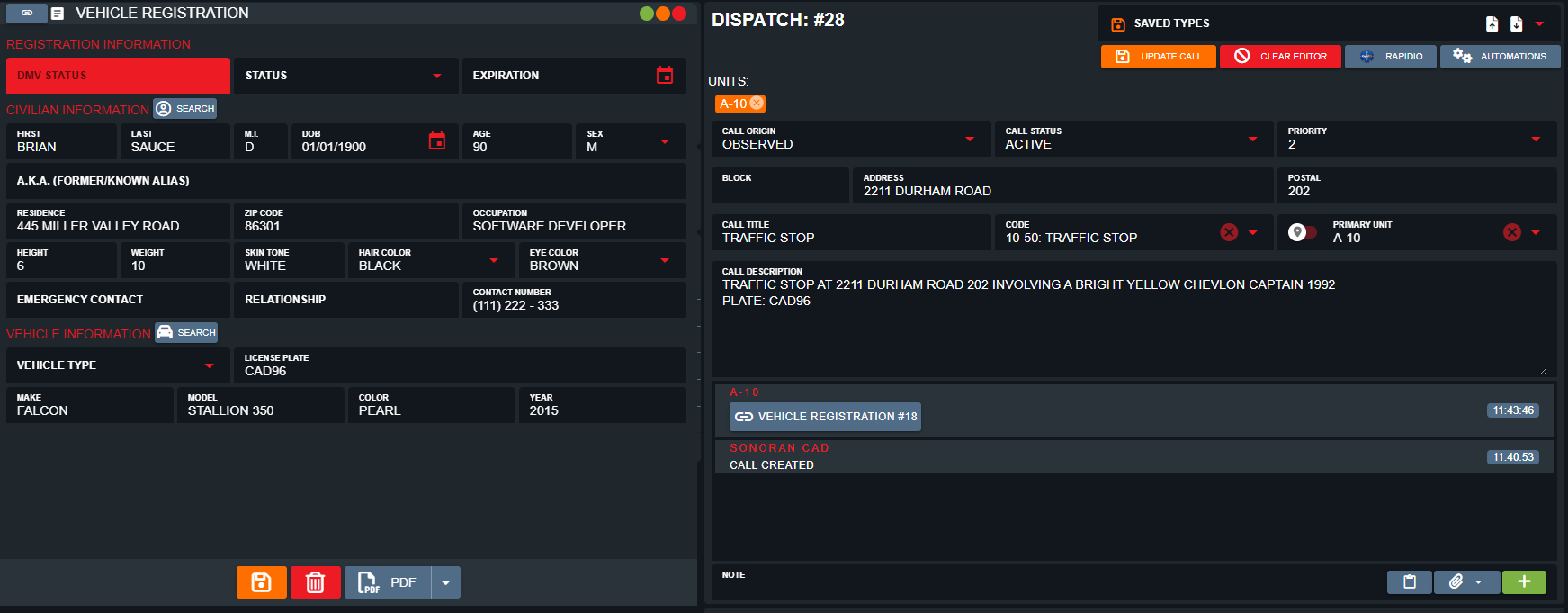
- Include the vehicle’s make, model, year, color, and license plate in the customizable description template
- Include the customizable 10-code
- Automatically search the license plate
Traffic Stop Command Configuration
Configure the traffic stop behavior under Admin > In-Game Integration > ER:LC > Server > Traffic Stops.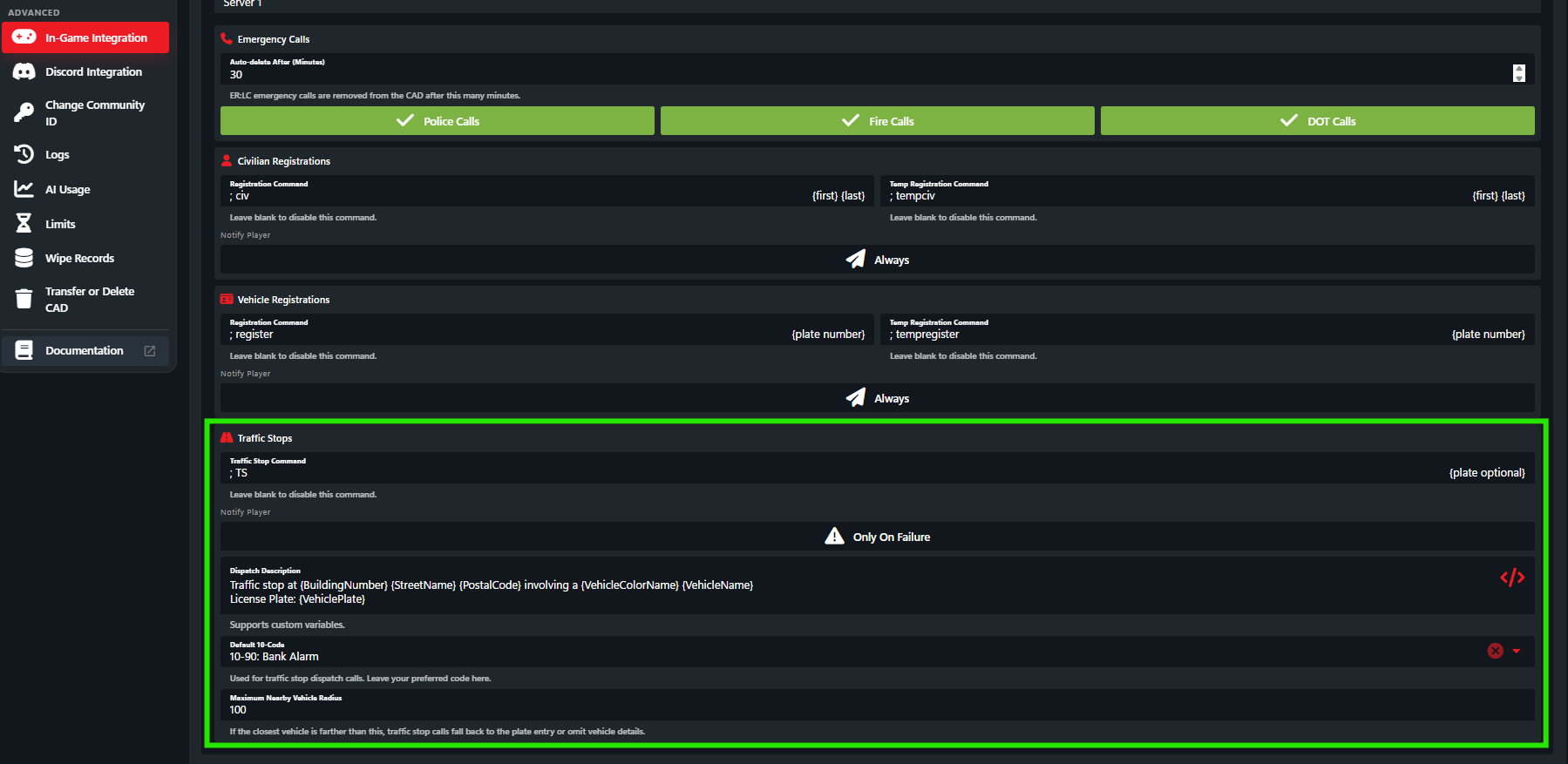
Command
Customize the command from;ts to anything else.
Dispatch Description
When the traffic stop call is created, the call description can contain customizable information about the vehicle, license plate, and more. Select the</> icon to view available variables, click-to-copy, and paste them into the description.
10-Code
When the traffic stop call is created, it will use the selected custom 10-code.CAD Permission Requirements
In order to use this command in-game, players must have a linked Roblox account with the Dispatch or Self Dispatch permission to create a traffic stop call.Using the Desktop Hotkey
- Download the Desktop Application
In order to use hotkeys, download the Windows or OSX desktop application.
- Configure your Hotkey
Configure a traffic stop hotkey under Customization > Hotkeys > Traffic Stop
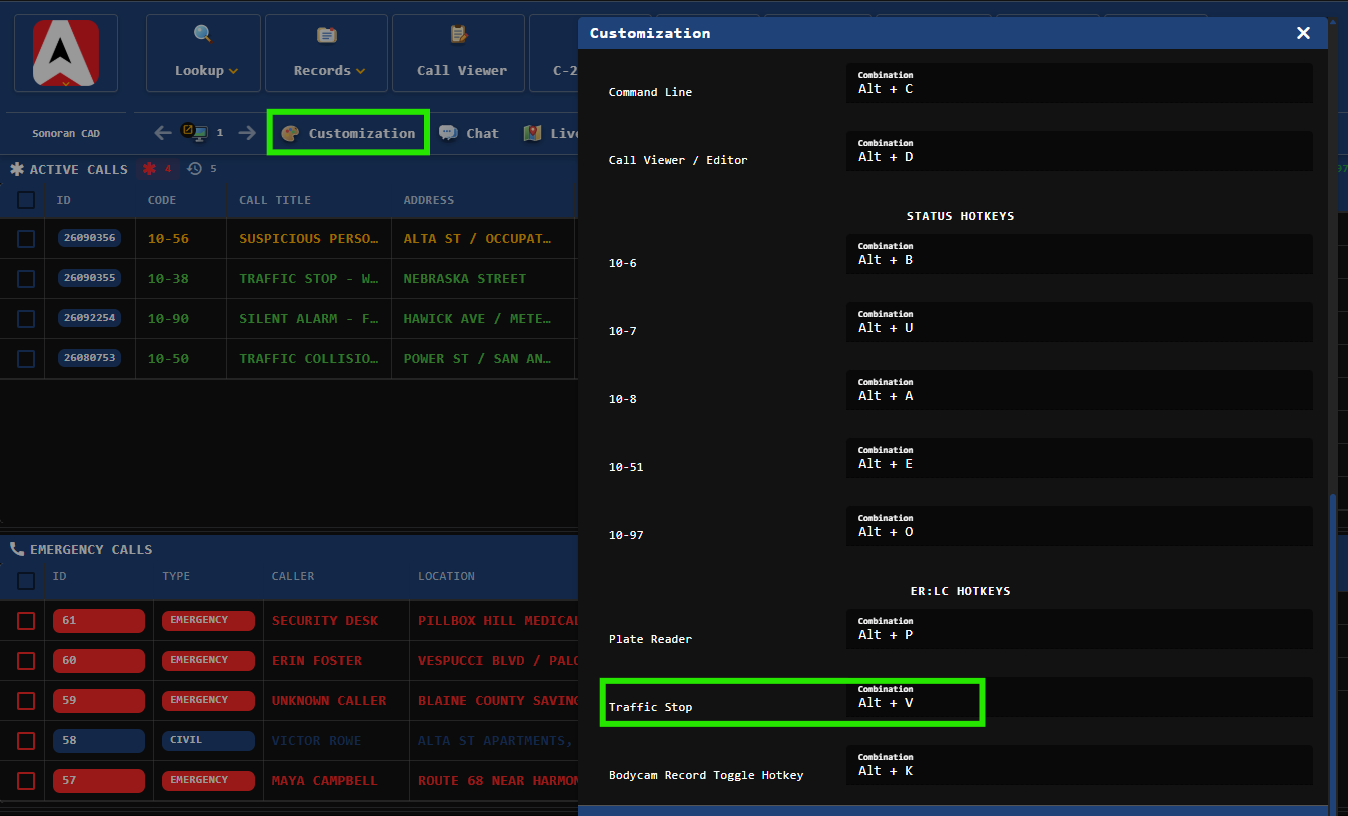
- Utilize the Hotkey
Once in-game, press your desktop hotkey to generate a traffic stop.
- The vehicle must be nearby with a player in it.
- You must have a linked Roblox account.
Using the In-Game Commands
The CAD will automatically find the closest vehicle to the unit. The call will automatically include the vehicle description, plate, and location. Ex:;ts
In-game commands not working? Make sure you have connected the webhook.
Customizing the In-Game Command
Result
Once the hotkey or in-game command has been ran, a traffic stop call will be generated with the details, a plate lookup will open, and the call will be visible on the live map.