# 10-Codes

## What are 10-Codes?

10-Codes are used to differentiate and abbreviate dispatch situations.\
Ex: 10-10: Fight in Progress

### Modify 10-Codes

Under Admin > Customization > 10-Codes you can add, edit, or remove 10-codes for your community.

<figure><img src="https://232668649-files.gitbook.io/~/files/v0/b/gitbook-x-prod.appspot.com/o/spaces%2F-M4pGN81fb4R6zFhodcu%2Fuploads%2FoPshTL3KndVNhnBMCmdV%2Fimage.png?alt=media&#x26;token=b599ce3c-e6bd-49df-9798-d0e2c15e2c20" alt=""><figcaption></figcaption></figure>

### My locality doesn't call them "10-Codes"

Sonoran CAD allows you to change the naming of "10-Codes" to anything else you'd like.\
Learn more about our [geographical customization](https://docs.sonoransoftware.com/cad/tutorials/customization/geographical-settings).

## Import from Premade Spreadsheet (CSV)

We've compiled 10-code spreadsheets for all 50 US states. Download a CSV from our [10-code repository](https://github.com/Sonoran-Software/CAD-10-Codes) and [import it into the CAD](#id-4.-import-the-csv-file).

## Import 10-Codes from a Spreadsheet (CSV)

Sonoran CAD allows you to import 10-codes directly from a spreadsheet.

{% hint style="danger" %}
**Spreadsheet (CSV) importing is only supported directly from Google sheets.**

Support will not be provided to users modifying their spreadsheets with Excel, or any other program. The official Google sheet includes specific safety checks preventing invalid formats, blank spaces, etc.
{% endhint %}

### 1. Copy the Google Sheet

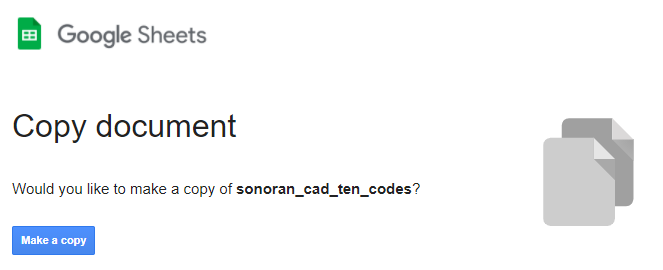
Navigate to our official [10-code Google sheet](https://docs.google.com/spreadsheets/d/1XOqjkrKcvP6hc9F6DynK03HqLVY8KWV7M4g6aQddBu8/copy) and make a copy. Using a copy of our official sheet ensures your 10-codes are formatted correctly.

**You may ONLY use the Google sheet directly. Editing this via Excel or any other program is NOT supported.**

![Sonoran CAD - Copy 10-Codes Spreadsheet](https://232668649-files.gitbook.io/~/files/v0/b/gitbook-legacy-files/o/assets%2F-M4pGN81fb4R6zFhodcu%2F-MSUI8j0rrr0Ph1EruvG%2F-MSUcNwohkz-2YWDJxmF%2Fimage.png?alt=media\&token=9eb939cc-82d1-46e6-a9c4-8fd1269d2443)

### 2. Add Your 10-Codes

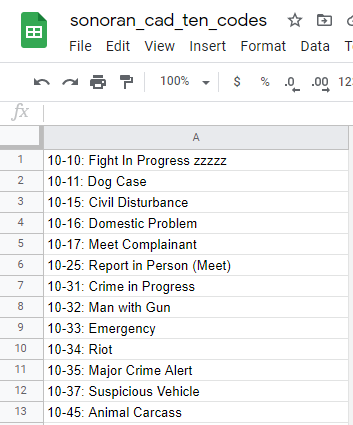
Now that you have copied this sheet into your Google Drive, you can add new rows and format your 10-codes.
{% hint style="warning" %}
**Do NOT add additional columns.**\
Every 10-code must be on a separate row to be properly imported into Sonoran CAD.
{% endhint %}

![Sonoran CAD - 10-Codes CSV](https://232668649-files.gitbook.io/~/files/v0/b/gitbook-legacy-files/o/assets%2F-M4pGN81fb4R6zFhodcu%2F-MSUI8j0rrr0Ph1EruvG%2F-MSUcs_RAqTv7DT4QHQ1%2Fimage.png?alt=media\&token=11e7bae1-4dcb-4af0-b097-129c004535af)

### 3. Download the CSV

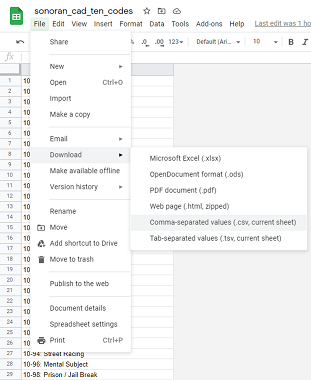
In Google Sheets, navigate to File > Download > Comma Separated Values (.csv) to download the file.
![Google Sheets - Download CSV](https://232668649-files.gitbook.io/~/files/v0/b/gitbook-legacy-files/o/assets%2F-M4pGN81fb4R6zFhodcu%2F-MSUI8j0rrr0Ph1EruvG%2F-MSUdC8UX-0n6_U0SiKm%2Fimage.png?alt=media\&token=0d6c696f-79d7-425b-9465-57a203bfa948)

### 4. Import the CSV File

In Sonoran CAD, navigate to Admin > Customization > 10-Codes

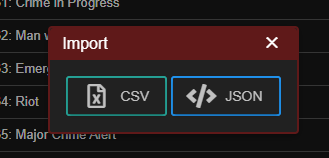
In the 10-codes section, select the "Import" button.\
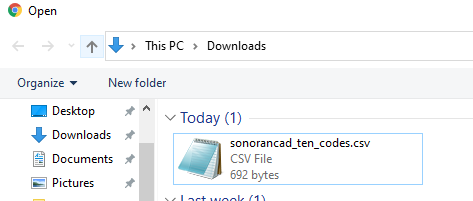
Then, select "CSV" as the import type and select your downloaded CSV file.
![Sonoran CAD - Import Data](https://232668649-files.gitbook.io/~/files/v0/b/gitbook-legacy-files/o/assets%2F-M4pGN81fb4R6zFhodcu%2F-MSUI8j0rrr0Ph1EruvG%2F-MSUdXF30E9PPkfXXXZf%2Fimage.png?alt=media\&token=9b6780bb-89a5-4fe4-8202-1196cdb73a5e)

![File Selector - Select CSV](https://232668649-files.gitbook.io/~/files/v0/b/gitbook-legacy-files/o/assets%2F-M4pGN81fb4R6zFhodcu%2F-MSUI8j0rrr0Ph1EruvG%2F-MSUdgAbVUfevkb3ENIg%2Fimage.png?alt=media\&token=221e25cd-a041-4f10-b1d6-a4cebc8cd3e7)

After selecting the CSV file, your 10-codes will be imported into the CAD and saved automatically.

### Troubleshooting

Having issues importing your CSV? [Be sure you are using and editing our Google Sheet with the Google Sheets program only](#1-copy-the-google-sheet).

Our Google sheet includes specific error checking and validation to handle common mistakes.\
**Support is not provided if you are using Excel, or any other program.**

## Import from JSON

You can also build and format your 10-Codes directly into JSON. These JSON formatted 10-Codes can then be pasted directly into the UI.

### 1. Format the JSON Structure

The JSON structure is an string array. Be sure to strictly follow the format.

```javascript
[
  "10-10: Fight In Progress",
  "10-11: Dog Case",
  "10-15: Civil Disturbance",
  "10-16: Domestic Problem",
  "10-17: Meet Complainant",
  "10-25: Report in Person (Meet)",
  "10-31: Crime in Progress",
  "10-32: Man with Gun",
  "10-33: Emergency",
  "10-34: Riot",
  "10-35: Major Crime Alert",
  "10-37: Suspicious Vehicle",
  "10-45: Animal Carcass",
  "10-46: Assist Motorist",
  "10-52: Ambulance Needed",
  "10-55: Intoxicated Driver",
  "10-56: Intoxicated Pedestrian",
  "10-57: Hit and Run",
  "10-59: Escort",
  "10-70: Fire Alarm",
  "10-73: Smoke Report",
  "10-80: Chase in Progress",
  "10-89: Bomb Threat",
  "10-90: Bank Alarm",
  "10-91: Pick Up Prisoner / Subject",
  "10-92: Improperly Parked Vehicle",
  "10-94: Street Racing",
  "10-96: Mental Subject",
  "10-98: Prison / Jail Break"
]
```

### 2. Import the JSON Structure

In Sonoran CAD, navigate to Admin > Customization > 10-Codes

In the penal codes section, select the "Import" button.\
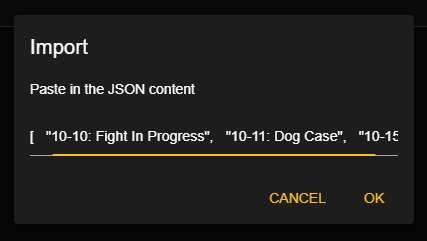
Then, select "JSON" and paste the JSON string array of 10-codes.
![](https://232668649-files.gitbook.io/~/files/v0/b/gitbook-legacy-files/o/assets%2F-M4pGN81fb4R6zFhodcu%2F-MSUI8j0rrr0Ph1EruvG%2F-MSUdXF30E9PPkfXXXZf%2Fimage.png?alt=media\&token=9b6780bb-89a5-4fe4-8202-1196cdb73a5e)

![Sonoran CAD - Paste JSON Content](https://232668649-files.gitbook.io/~/files/v0/b/gitbook-legacy-files/o/assets%2F-M4pGN81fb4R6zFhodcu%2F-MSdiWMcxFPxHi4fYuuR%2F-MSdj48-k0TjrwgxQfA9%2Fimage.png?alt=media\&token=e31bd68e-f1e9-4e11-91b7-16355934f513)

After pasting the JSON content, your 10-codes will be imported into the CAD and saved automatically.