Customizing Tones
- Access the Customization Menu
In the admin page, navigate to Customization > Customization > Tone Board
- Uploading Tones
Direct Upload
You can upload .mp3, .wav, and .mp4 files directly to the CAD with the plus version.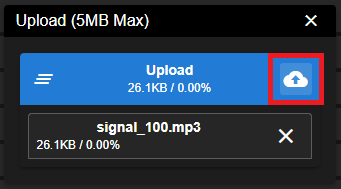
External Upload
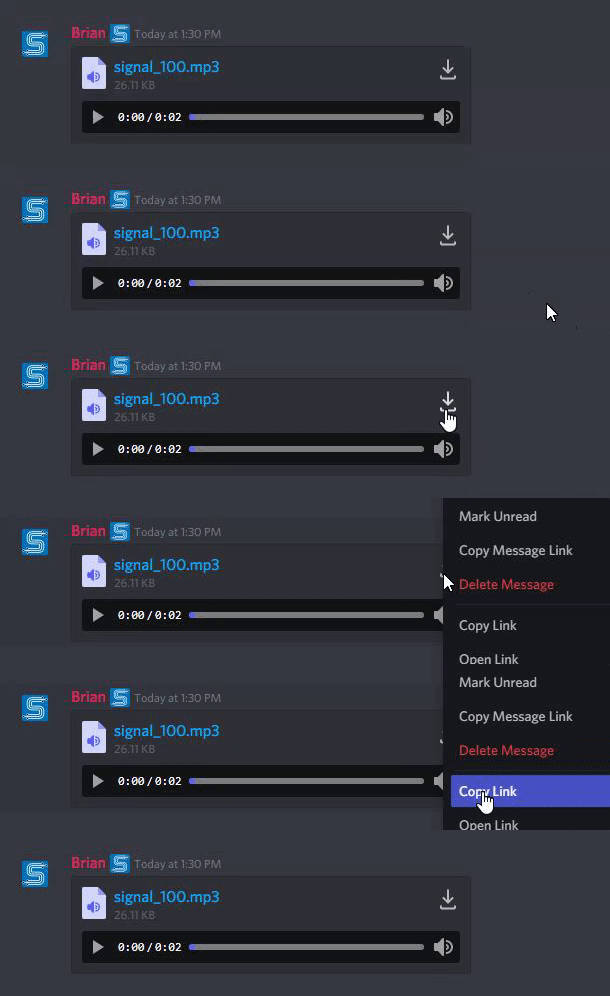
If your community is not on the plus version or higher, you will need to link your tone from an external URL. You can upload to a website or file store of your choosing, but it must be a direct link ending in the file extension (.mp3, .mp4, .wav). You can even use something as easy as Discord.- Upload your tone file to Discord in any chat
- Right click on the file name or download button
- Select
Copy Link - Paste the direct URL into Sonoran CAD
 Your direct link will look something like this:
https://cdn.discordapp.com/attachments/12345/abc123/signal_100.mp3
- Customize the Available Tones
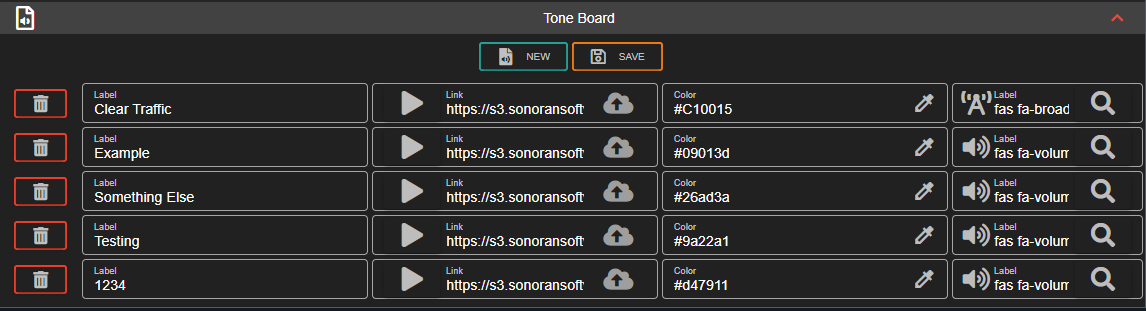
Here, you can add new tones and specify the following:
- Tone Label
- Tone Link/URL (Direct uploading available based on your version)
- Tone Button Color (Hex)
- Tone Button Icon
Tone Icons
Tone buttons support icons from several different web libraries. Clicking the search icon will open the Font Awesome icon library search. Here, you can search for an icon - click on it - and paste the icon name into the CAD. You can also use material theme icons.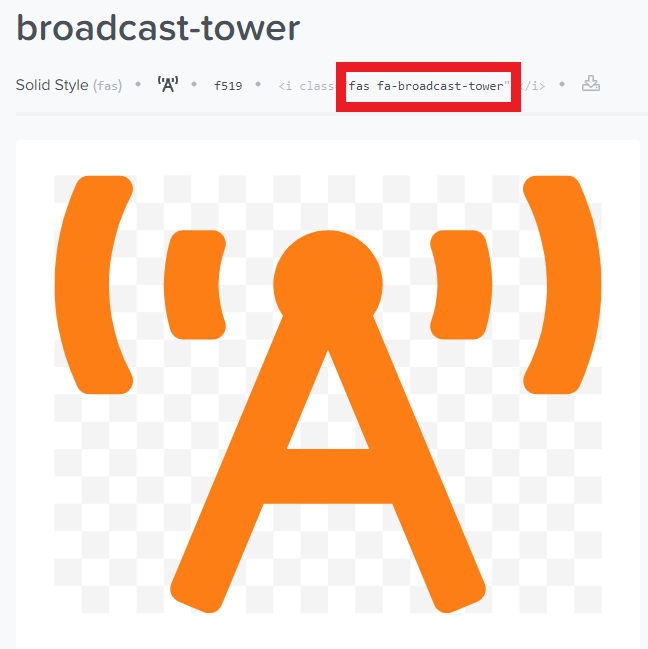
Save your Tones
Don’t forget to press save!Selecting the Tone “Play To” Groups
The tone board can be set to play tones for specific identifiers, groups, agencies, departments, subdivisions, and dispatch calls. You can click on any one of these items and select “Tone Board” to add this group to the play target on the tone board.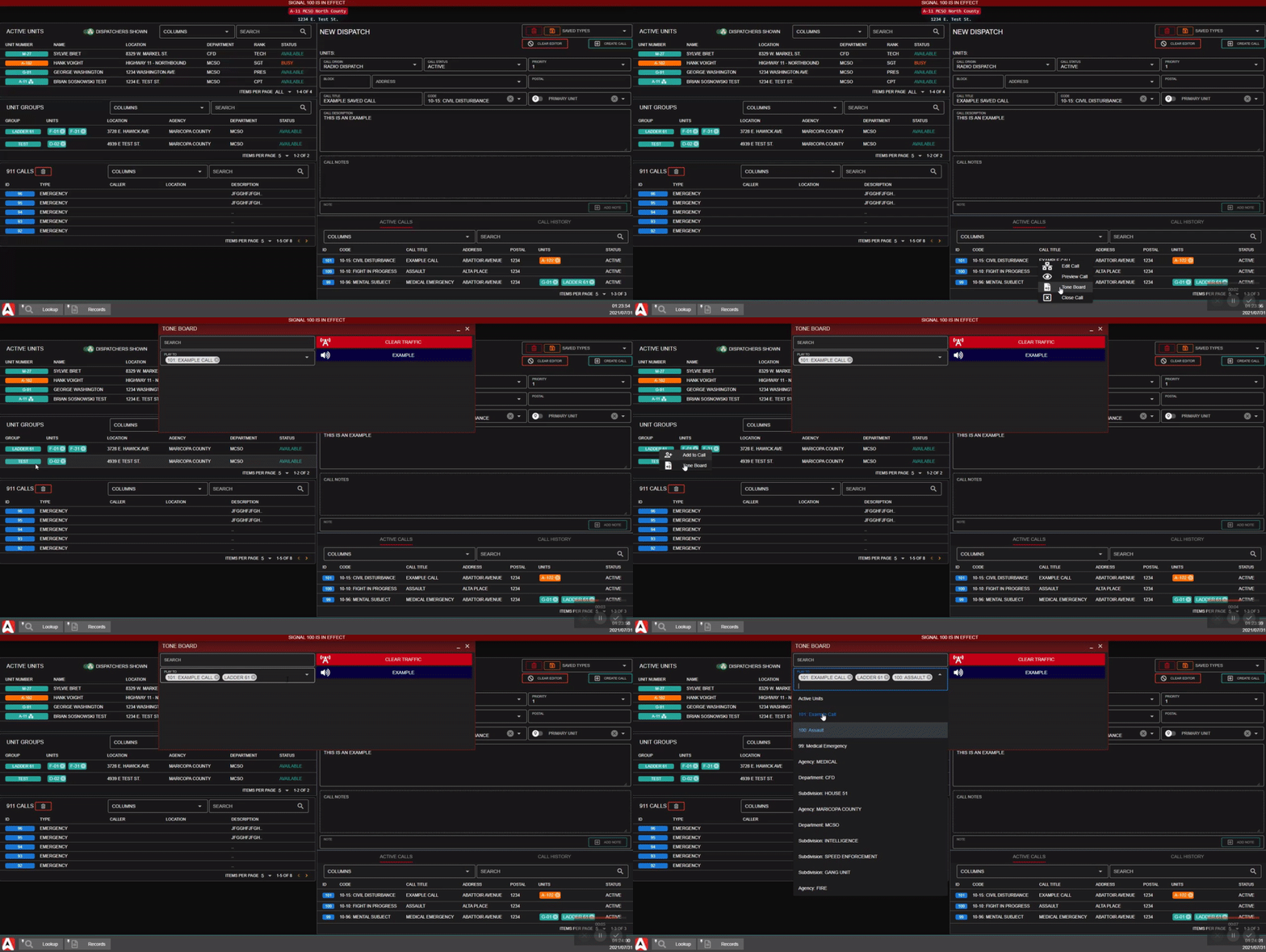
Playing Tones as Dispatch
Opening the Tone Board Window
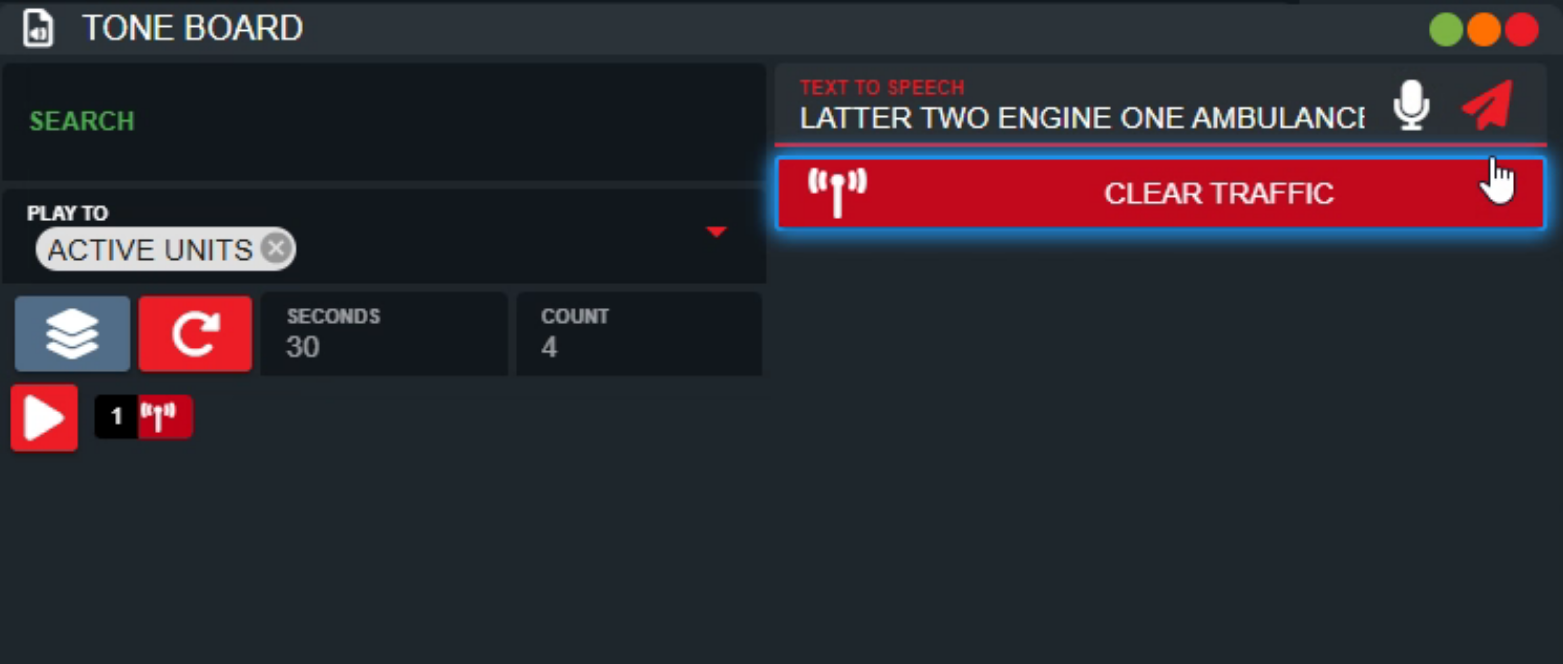
The tone board can be opened by users in dispatch or self-dispatch mode. From the start menu, this panel is located underDispatch > Tone Board
This window can also be opened via a custom hotkey, also supported with our Streamdeck Integration.
The window can also be minimized, and pinned to the taskbar on your screen for quick access.
Tone Board Shortcuts
The tone board is designed to be as efficient as possible.Search Filtering
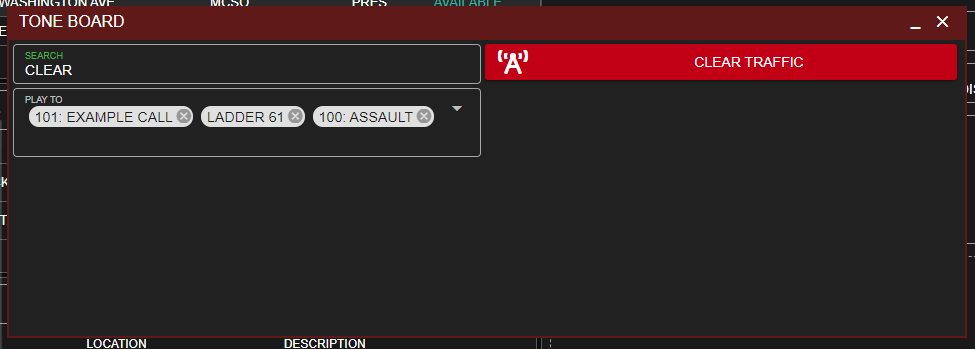
The top of the tone board includes a search box, allowing you to quickly filter tone options as you type.If you filter down the options to a single tone, the search label will turn green - allowing you to press
ENTER to play the tone.
The tone board is also designed to auto-focus this search box whenever it is opened, or the header is clicked.
Hotkey Auto-Window
Global hotkeys allow you to open the tone board in a more advanced way. Opening the tone board with your keyboard or Streamdeck shortcut will first check for any existing tone board window opened or minimized. If one is found, that existing window will be opened and focused to the search bar. Otherwise, a new tone board window will be opened with the search box focused.Manual Tone Select
Instead of using the search box filtering, users can also manually click the tone board button to play the audio.Tone Board Repeat
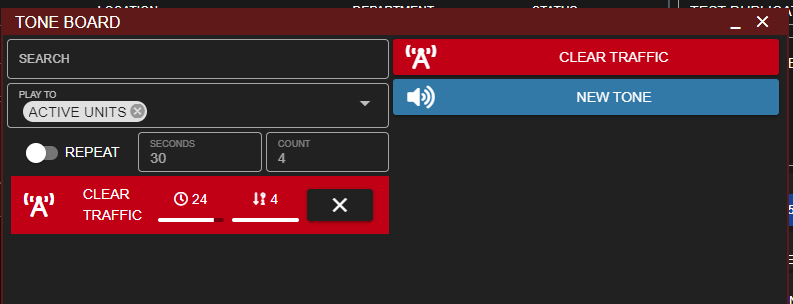
Tones can be repeated at a specific interval. When sending a new tone, togglerepeat on and customize the seconds and count values. When the tone is sent, the repeat timer and counter will visualize any actively repeating tones.
Stacked Tones
Toggle the Stack icon on and select multiple tones to be played in order. Drag-and-drop the tones to re-order. Press the Play button to play the stack.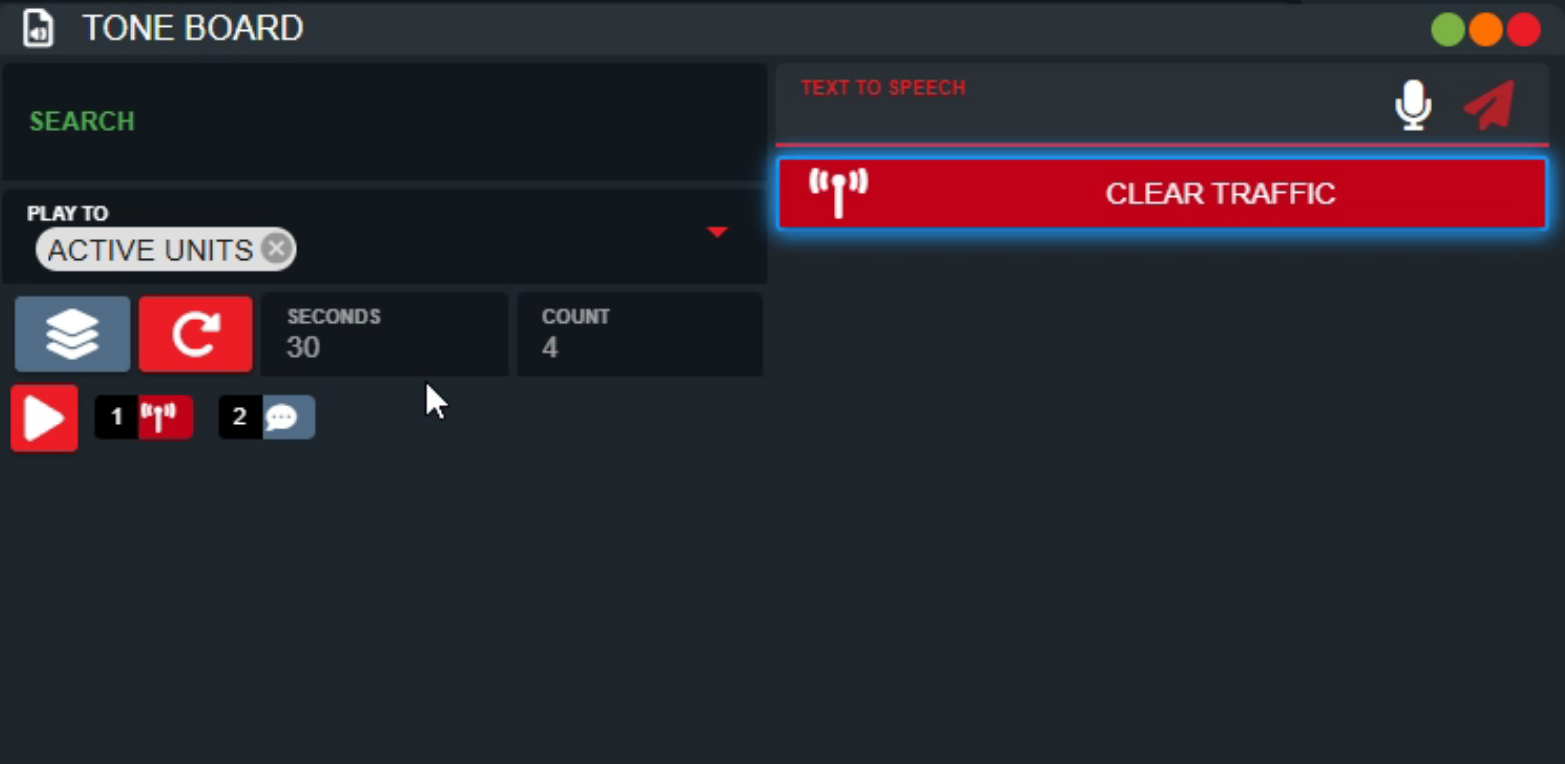
Text-to-Speech
The tone board can also play text-to-speech to users. Enter text into the Text To Speech box to send. Additionally, you can select the Microphone button to record your own voice and translate that to text before sending out the speech-to-text tone.