

Create an automation
- Select Add automation, enter a descriptive name, and leave Enabled on.
- Under When, select the record template. You can type to filter the template and field dropdowns.
- Under If, choose a field, comparison, and accepted value. Use Add condition for additional checks. All conditions requires every check to match; Any condition requires at least one. A rule supports 1–20 conditions in one group.
- Under Then, choose the field to update, the action, and any required value.
- Select Save. Create or edit a test record, save it, then reopen it to confirm the result.
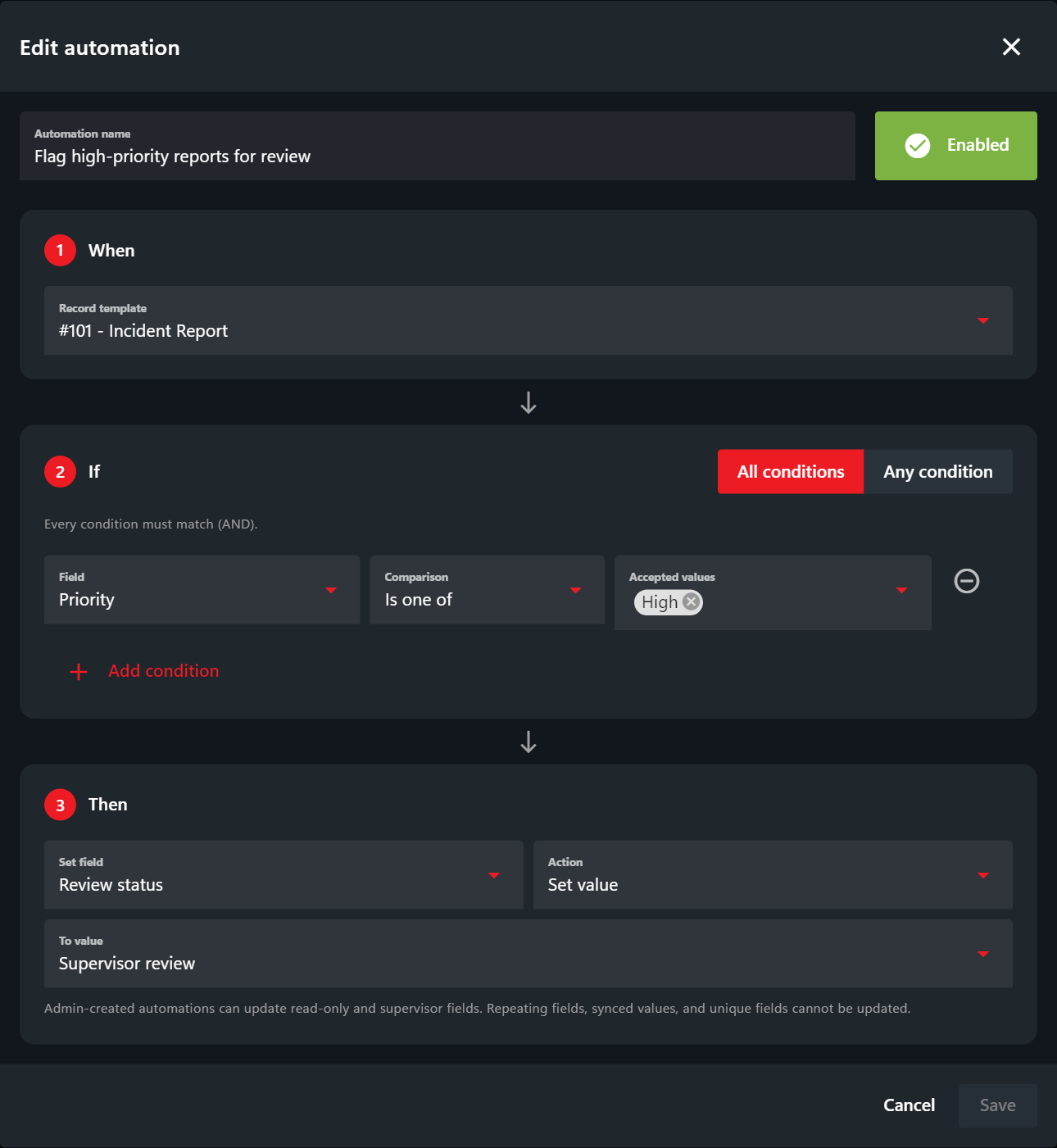 In this example, saving an Incident Report with Priority = High changes Review status to Supervisor review. Both choices already exist in the template. A custom license status such as
 SUSPENDED likewise needs to be an option in a custom select field; built-in status fields keep their predefined statuses.
Example: Suspend a License at Eight Points
Use a license template with a Points field and a Status dropdown containing Valid, Suspended, and Expired.- When: License.
- If: Points is At least
8. - Then: Set Status to Suspended.
Let Officers Update License Points
Allow officers to edit the points on another person’s license so their changes can trigger the automation. These steps require the selected-field editing model, included in CAD 3.44.1:- Open Administration > Customization > Custom Records and select the license template.
- Click Points in the preview and enable Allow limited editing in the field settings. Leave Read only off.
- Keep Allow limited editing off for fields officers should not change, such as the license holder’s name. Select Save.
- In account permissions, give officers Police page access and View and Edit selected fields on others’ records for that license template. Remove Edit any from all permission sources for roles that should only edit selected fields. If Points is marked Supervisor only, they also need Supervisor fields permission.
Available Fields
Text and select comparisons ignore letter case. Numeric comparisons require a plain number without commas or exponent notation. A blank, missing, or malformed value does not pass a numeric comparison. Use explicit Is empty checks for empty values; a missing field is not considered an empty field. Contains none (not empty) requires at least one existing checkbox selection.
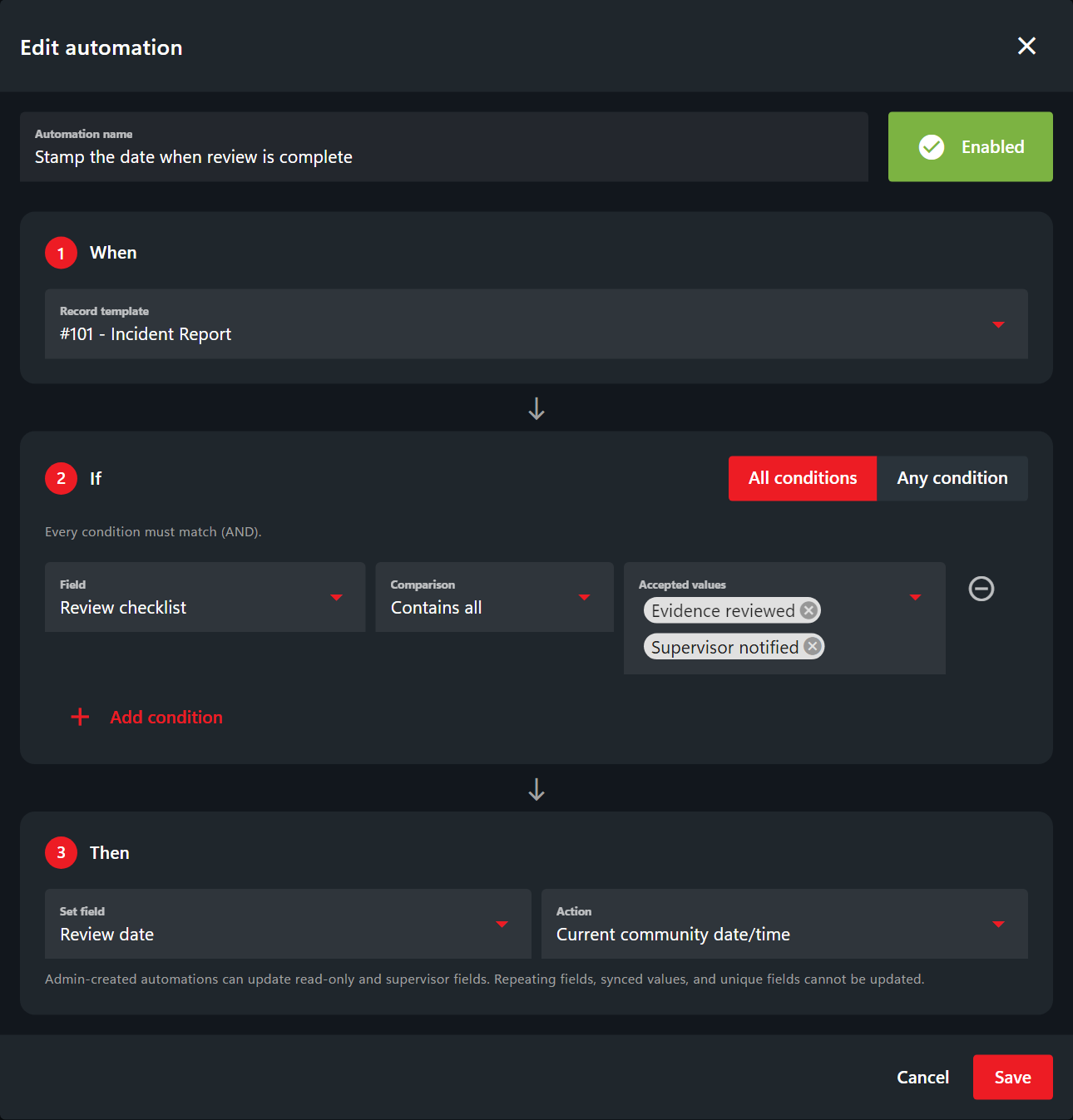 This example stamps Review date when the record is saved with both Evidence reviewed and Supervisor notified checked. Current date/time uses the community timezone, or UTC when unset. If those conditions still match on a later save, the date is stamped again. Time passing by itself does not run an automation.
Field restrictions
Conditions and actions use supported fields in non-repeating custom sections. Generated identifiers, random fields, address fields, unit-information fields, labels, and fields without a unique field UID are unavailable. Administrator-created actions can update Read only and Supervisor only fields. Those settings still restrict manual editing. Actual database-synced values and unique fields cannot be action targets; editable local overlay fields on merged records can be updated when the merged record is saved. A native field’s old database-mapping flag alone does not exclude it. Required fields cannot be cleared. Removing the final selection from a required checkbox field prevents the save from applying the automation changes.How Rules Behave
- Rules run when native records or civilians are created or edited, including API saves, and when editable database-merge overlays are saved.
- Each rule changes one field on the record being saved. Conditions use the submitted values; one automation’s action does not trigger another automation.
- A matching rule applies its action on every save. If its conditions do not match, it leaves the field unchanged. There is no automatic restoration to an earlier value.
- Saving, disabling, or deleting a rule does not update existing records retroactively or undo previous changes.
- External database changes, direct SQL updates, template maintenance, and elapsed time are not triggers. Rules do not schedule jobs, total values across records, or perform external actions.