# Addresses and Street Names

{% hint style="warning" %}
Street address customization requires the **plus** version of Sonoran CAD or higher.\
For more information, see our [pricing](https://docs.sonoransoftware.com/cad/pricing/faq) or view how to check your community [limits](https://docs.sonoransoftware.com/cad/tutorials/getting-started/view-your-limits).
{% endhint %}

<figure><img src="https://232668649-files.gitbook.io/~/files/v0/b/gitbook-x-prod.appspot.com/o/spaces%2F-M4pGN81fb4R6zFhodcu%2Fuploads%2F6vflaH5rSBsmKLHqg3aR%2FAutoSuggest.png?alt=media&#x26;token=f87479ec-7602-4e69-a1c6-937f328fe11f" alt=""><figcaption></figcaption></figure>

## Import Street Names from a Spreadsheet (CSV)

### 1. Copy the Google Sheet

* [GTAV Street Names](https://docs.google.com/spreadsheets/d/1IkbNJNhMYToqHQE6eb3ujp6ufkjPkLgDgq29g9woGR0/copy)
* [ER:LC Roblox Street Names](https://docs.google.com/spreadsheets/d/1QEuImE6GH1H6sZFltLMYt7HUcExBF3_-hhNWAB9r6Hg/edit?usp=sharing)

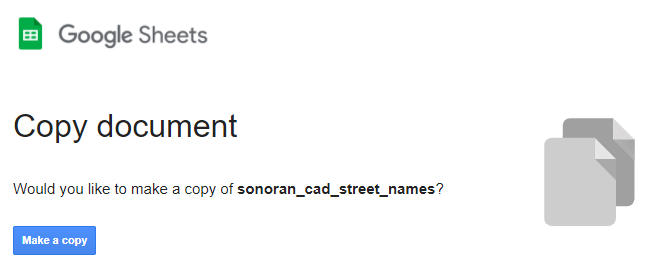
Navigate to one of our official street name Google sheet and make a copy. Using a copy of our official sheet ensures your street names are formatted correctly.
![Sonoran CAD - Copy Street Name Spreadsheet](https://232668649-files.gitbook.io/~/files/v0/b/gitbook-legacy-files/o/assets%2F-M4pGN81fb4R6zFhodcu%2F-MSZnL82T2aRFpfjQveP%2F-MSZnyNOlAqJD6-I7E1K%2Fimage.png?alt=media\&token=69895096-cfa6-4699-a7a7-b093e6fc4716)

### 2. Add Your Street Names

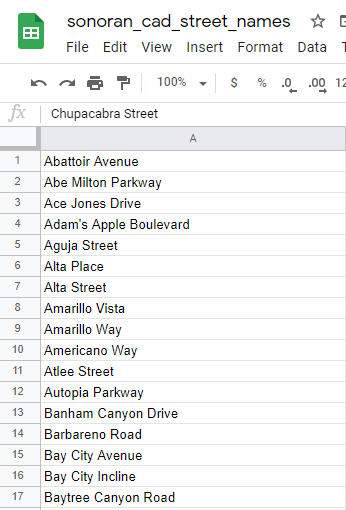
Now that you have copied this sheet into your Google Drive, you can add new rows and format your street names and addresses.
{% hint style="warning" %}
**Do NOT add additional columns.**\
Every street name must be on a separate row to be properly imported into Sonoran CAD.
{% endhint %}

![Sonoran CAD - Street Names CSV](https://232668649-files.gitbook.io/~/files/v0/b/gitbook-legacy-files/o/assets%2F-M4pGN81fb4R6zFhodcu%2F-MSZnL82T2aRFpfjQveP%2F-MSZoBHzypi7DUg9mvAt%2Fimage.png?alt=media\&token=074a6e9b-8a7f-4cf4-9dbf-32bbdc0ccc10)

### 3. Download the CSV

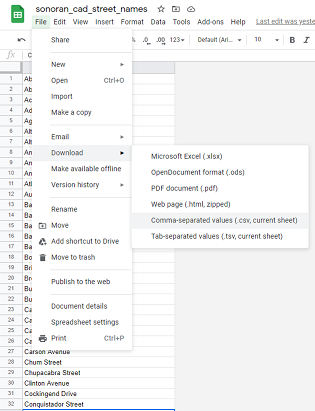
In Google Sheets, navigate to File > Download > Comma Separated Values (.csv) to download the file.
![Google Sheets - Download CSV](https://232668649-files.gitbook.io/~/files/v0/b/gitbook-legacy-files/o/assets%2F-M4pGN81fb4R6zFhodcu%2F-MSZnL82T2aRFpfjQveP%2F-MSZoPWI8xMnG-osx3Wr%2Fimage.png?alt=media\&token=67335d1f-7cb1-42b7-a1be-06dd0d11c1cb)

### 4. Import the CSV File

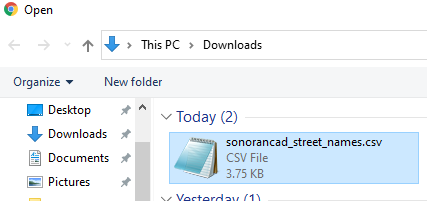
In Sonoran CAD, navigate to Admin > Customization > Customization > Addresses

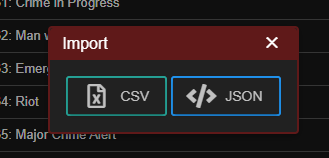
In the addresses section, select the "Import" button.\
Then, select "CSV" as the import type and select your downloaded CSV file.
![Sonoran CAD - Import Data](https://232668649-files.gitbook.io/~/files/v0/b/gitbook-legacy-files/o/assets%2F-M4pGN81fb4R6zFhodcu%2F-MSUI8j0rrr0Ph1EruvG%2F-MSUdXF30E9PPkfXXXZf%2Fimage.png?alt=media\&token=9b6780bb-89a5-4fe4-8202-1196cdb73a5e)

![File Selector - Select CSV](https://232668649-files.gitbook.io/~/files/v0/b/gitbook-legacy-files/o/assets%2F-M4pGN81fb4R6zFhodcu%2F-MSZnL82T2aRFpfjQveP%2F-MSZoedWtDHM7H9o27lq%2Fimage.png?alt=media\&token=1b7d088a-c9d7-419c-bd09-14d97f469cfc)

After selecting the CSV file, your street names and addresses will be imported into the CAD and saved automatically.

### 5. View the Call Editor

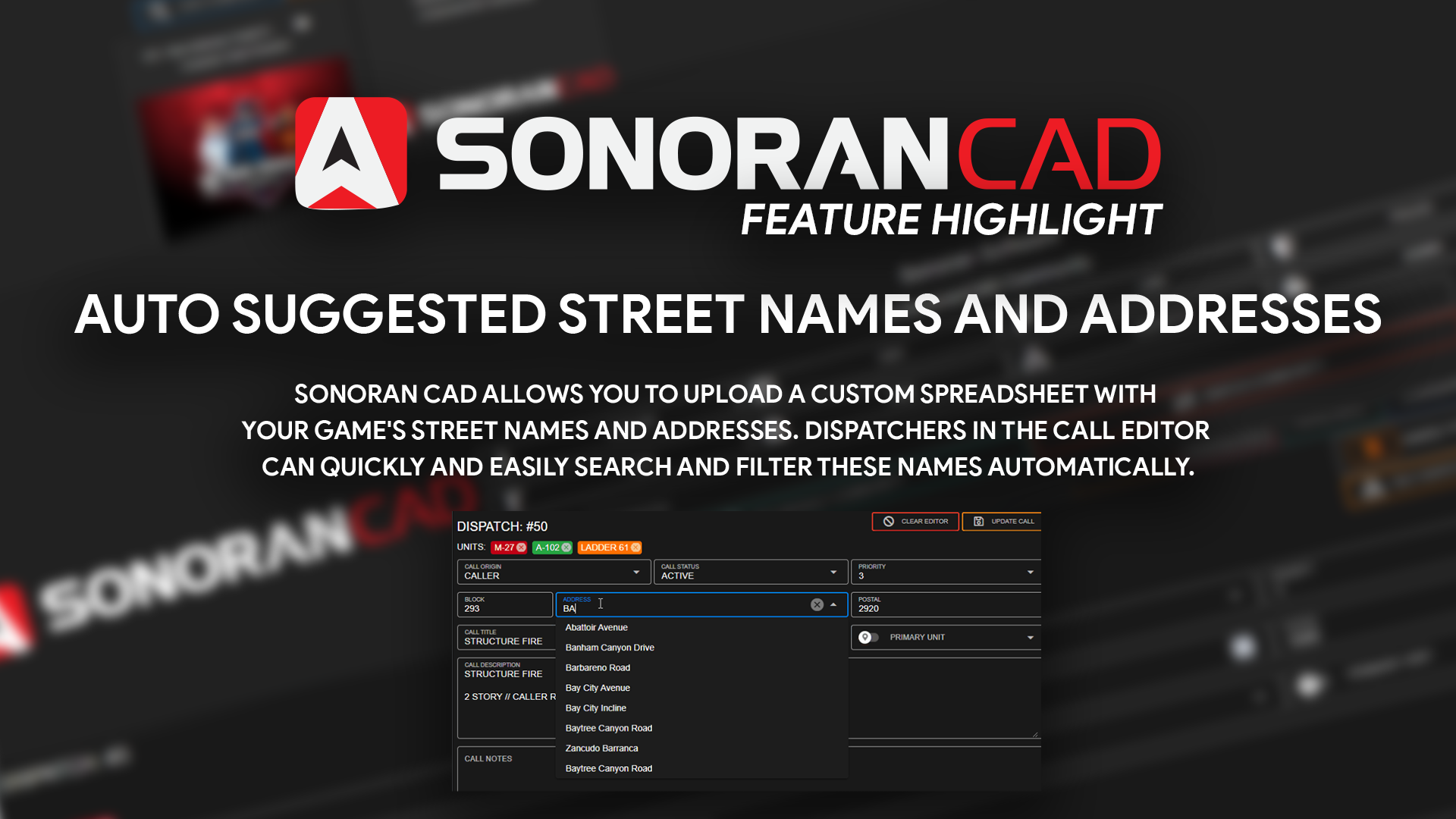
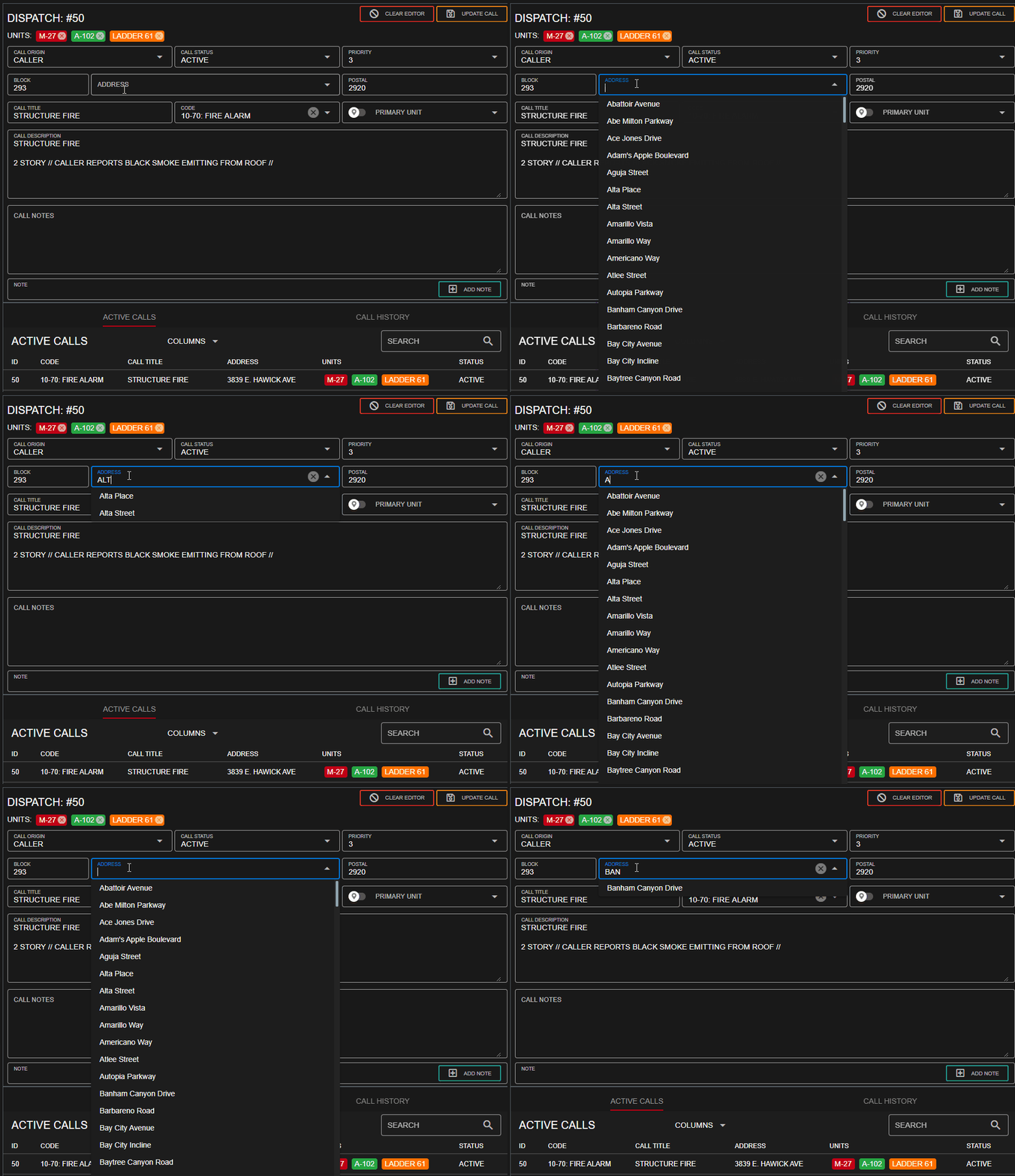
In the dispatch call editor, the `address` section is now a dropdown. This dropdown will auto-filter and suggest your street names and addresses as you type.
![](https://232668649-files.gitbook.io/~/files/v0/b/gitbook-legacy-files/o/assets%2F-M4pGN81fb4R6zFhodcu%2F-MSZp3Whgif3NaLJXBrz%2F-MSZpDO0HIrwR4zojlJU%2Faddresses.gif?alt=media\&token=1812846f-b509-404f-9eee-16974e2d6573)

### 6. Utilize in Custom Records

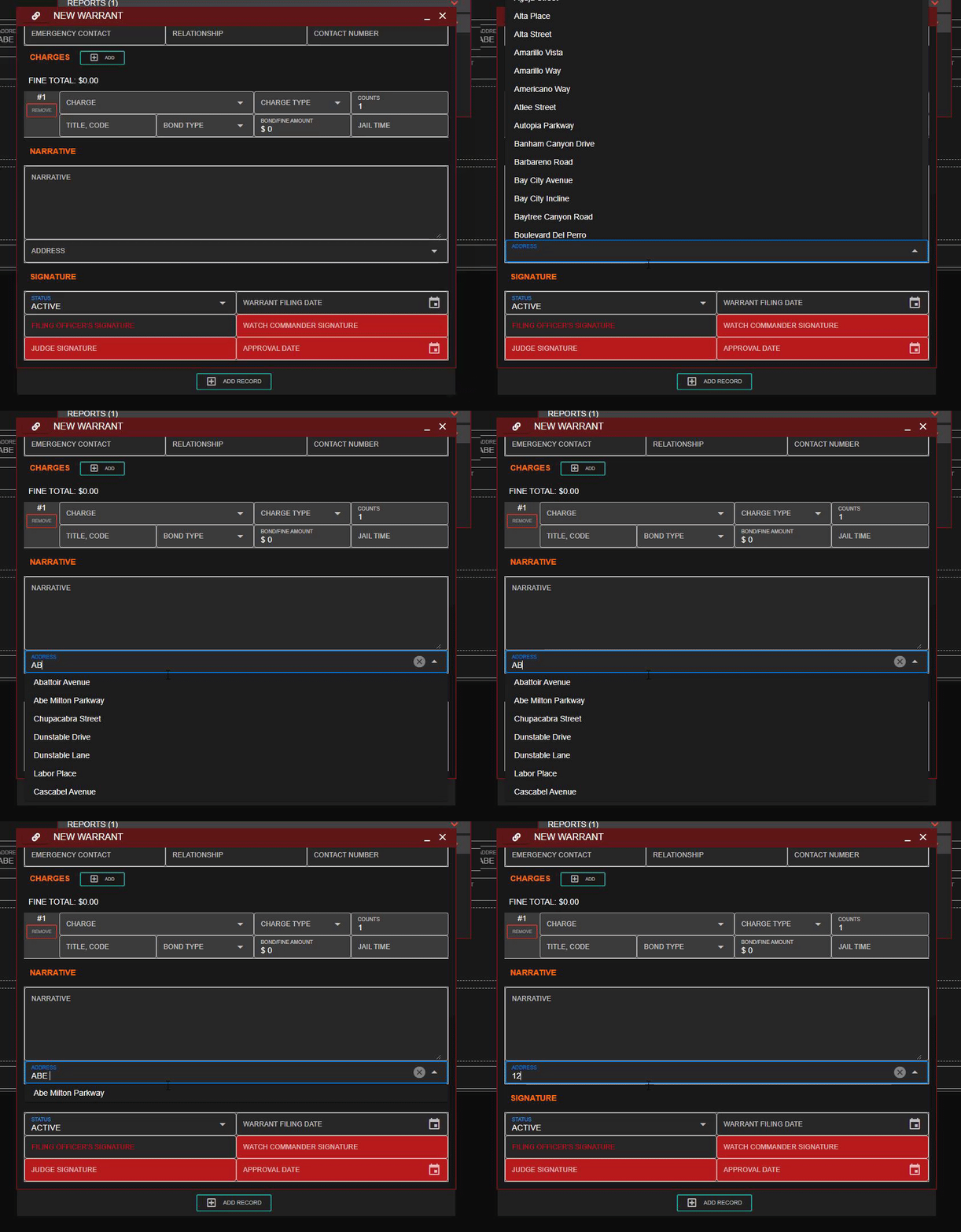
Custom records can also have a field with the type set to `address`. This field will auto-filter the same list of street addresses from your gamemode.
![Custom Records - Address Field](https://232668649-files.gitbook.io/~/files/v0/b/gitbook-legacy-files/o/assets%2F-M4pGN81fb4R6zFhodcu%2F-MbFoeysSgHBgq0rU1RL%2F-MbG2SpiKf78MVwledTO%2F90433cf83d1d487c05d18ea392289815.gif?alt=media\&token=00cb97b5-5743-4cc6-8345-5a275a3c1476)